Chapter 2
Networking
It is 8:47 on a Monday morning, and the entire accounting department has no internet. The sales team, twenty feet away, is working fine. One printer — just one — refuses to talk to anyone. Your phone rings: "The Wi-Fi is down, but only on the east side of the building." Welcome to networking, where nothing is ever broken in exactly the way you expect, and where understanding how data moves turns chaos into a checklist.
Networking is 23% of the A+ Core 1 exam — the single biggest domain after troubleshooting. CompTIA loves this material because it separates technicians who memorized terms from technicians who can think. This chapter builds your mental model the way working techs actually use it: stories first, then the precise details the exam demands.
2.1 The Models: OSI and TCP/IP
Every networking conversation starts with models — standardized ways of describing what happens when two computers talk. Think of them as the anatomy chart on a doctor's wall: nobody treats a patient by staring at the chart, but every diagnosis references it.
The OSI Model: Seven Layers of "What Just Happened?"
The Open Systems Interconnection model divides networking into seven layers. Data starts at the top (Layer 7) on the sending computer, gets wrapped with extra information at each layer going down — a process called encapsulation — travels as electrical signals or light pulses, then gets unwrapped layer by layer on the receiving end (de-encapsulation).
Here is a story that makes the layers stick. Imagine you want to send a birthday gift to a friend in another city:
- Layer 7 – Application: You choose what to send and which service to use — the gift itself, and whether it goes by courier, post, or hand delivery. (Real examples: HTTP for web pages, SMTP for email, FTP for files.)
- Layer 6 – Presentation: You wrap the gift and translate the card into your friend's language. This layer handles data formatting, encryption, and compression — making sure both sides understand the same "language."
- Layer 5 – Session: You arrange the delivery appointment — "I'll send it Tuesday, you'll be home, right?" This layer establishes, manages, and terminates connections between applications.
- Layer 4 – Transport: You choose registered mail (tracked, guaranteed — that's TCP) or a regular postcard (fast, cheap, might get lost — that's UDP). This layer handles reliability and breaks data into chunks called segments (TCP) or datagrams (UDP). Port numbers live here.
- Layer 3 – Network: You write the street address on the package. This is where IP addresses and routers live. Data at this layer is called packets.
- Layer 2 – Data Link: The local courier who only knows your neighborhood. This layer uses MAC addresses (the physical address burned into every network card) and switches to deliver within a local network. Data here is called frames.
- Layer 1 – Physical: The actual truck, road, and wheels. Cables, connectors, hubs, and the electrical or light signals themselves. Data here is just bits — ones and zeros.
> EXAM TIP: CompTIA will absolutely ask you to identify which layer something belongs to. Memorize the layers with a mnemonic. Bottom-up (1→7): "Please Do Not Throw Sausage Pizza Away" (Physical, Data Link, Network, Transport, Session, Presentation, Application). Top-down (7→1): "All People Seem To Need Data Processing." Pick one and drill it until it's automatic.
| Layer | Name | Key Devices / Concepts | Data Unit |
|---|---|---|---|
| 7 | Application | HTTP, FTP, SMTP, DNS | Data |
| 6 | Presentation | Encryption, compression, formatting | Data |
| 5 | Session | Connection setup/teardown | Data |
| 4 | Transport | TCP, UDP, port numbers | Segments / Datagrams |
| 3 | Network | IP addresses, routers | Packets |
| 2 | Data Link | MAC addresses, switches | Frames |
| 1 | Physical | Cables, hubs, signals | Bits |
> EXAM TIP: The classic trap question: "At which OSI layer does a switch operate?" Answer: Layer 2 (Data Link) — switches forward frames using MAC addresses. "Which layer for a router?" Layer 3 (Network) — routers forward packets using IP addresses. "Which layer for a hub?" Layer 1 — a hub just repeats electrical signals to every port with zero intelligence. If you remember hub = dumb (L1), switch = MAC (L2), router = IP (L3), you'll bank several easy points.
The TCP/IP Model: The One the Internet Actually Uses
Nobody built the internet on the OSI model — they built it on TCP/IP, which squeezes the same ideas into four layers:
| TCP/IP Layer | Maps to OSI | What Happens |
|---|---|---|
| Application | Layers 5–7 | Programs and protocols users touch (web, email, DNS) |
| Transport | Layer 4 | TCP/UDP, ports, reliability |
| Internet | Layer 3 | IP addressing and routing |
| Network Access (Link) | Layers 1–2 | Physical hardware, MAC addresses, frames |
> EXAM TIP: When a question says "which TCP/IP layer," don't answer with an OSI layer number. If they ask where IP addresses live in the TCP/IP model, the answer is the Internet layer — not "Layer 3." CompTIA mixes the models deliberately to catch memorizers.
TCP vs UDP: Registered Mail vs Postcards
This distinction shows up constantly, so let's nail it with the delivery analogy:
TCP (Transmission Control Protocol) is registered mail. Before sending anything, it performs a three-way handshake (SYN → SYN-ACK → ACK) to establish a connection — like calling ahead: "Are you ready? Yes. Okay, sending now." Every chunk gets an acknowledgment; missing chunks are re-sent. It's slower but guaranteed. Used for: web browsing (HTTP/HTTPS), email (SMTP/IMAP/POP3), file transfers (FTP) — anything where losing data is unacceptable.
UDP (User Datagram Protocol) is a postcard. No handshake, no tracking, no resending. It's blazing fast but unreliable — some postcards never arrive, and that's fine. Used for: live video calls, online gaming, VoIP, streaming, and DNS queries — anything where speed matters more than perfection. (A frozen video frame for half a second beats a three-second buffering pause.)
> EXAM TIP: "Which protocol would a VoIP phone call use?" UDP — because a delayed voice packet is useless, but a dropped one is barely noticed. "Which for a file download?" TCP — because a missing chunk corrupts the file. CompTIA frames this as scenario questions, not definitions.
2.2 Ports and Protocols: The Apartment Numbers of Networking
An IP address gets data to the right building (computer). A port number gets it to the right apartment (application) inside. When you visit a website, your browser connects to the server's IP on port 443 (HTTPS). The server might simultaneously run email on port 25 — same building, different apartment.
This is the single most memorization-heavy part of the exam, and there's no way around it: drill the port numbers until they're reflex. Here are the ones CompTIA tests, with the stories that make them stick:
| Port | Protocol | What It Does | Memory Hook |
|---|---|---|---|
| 20/21 | FTP | File transfers (20 = data, 21 = control) | "FTP is 21 — the file is 20, the boss (control) is 21" |
| 22 | SSH (also SCP, SFTP) | Encrypted remote access and secure file transfer | "22 — two secure swans" (secure shell) |
| 23 | Telnet | Unencrypted remote access (insecure — never use) | "23 is Telnet's insecure sibling of 22" |
| 25 | SMTP | Sending email | "SMTP sends at 25" |
| 53 | DNS | Resolves names to IP addresses | "DNS at 53 — the phone book" |
| 67/68 | DHCP | Assigns IP addresses automatically (67 = server, 68 = client) | "DHCP deals addresses at the 67/68 counter" |
| 69 | TFTP | Trivial/simple file transfer (no authentication) | "TFTP is the tiny 69" |
| 80 | HTTP | Unencrypted web traffic | "HTTP is the classic 80" |
| 110 | POP3 | Downloads email to one device (then usually deletes from server) | "POP goes the 110" |
| 143 | IMAP | Email synced across devices (stays on server) | "IMAP remembers at 143" |
| 161/162 | SNMP | Monitors and manages network devices (161 = queries, 162 = traps/alerts) | "SNMP sniffs at 161" |
| 389 | LDAP | Directory services (user logins, Active Directory) | "LDAP looks up at 389" |
| 443 | HTTPS | Encrypted web traffic | "HTTPS is the secure 443" |
| 445 | SMB/CIFS | Windows file/printer sharing | "SMB shares at 445" |
| 3389 | RDP | Remote Desktop — graphical remote control of Windows | "RDP at 3389 — remote 33, eighty-89" |
> EXAM TIP: Three patterns cover half the port questions: (1) Email trio — SMTP sends (25), POP3 downloads-and-deletes (110), IMAP syncs (143). If the scenario says "reads email on phone and laptop," the answer is IMAP. (2) Web pair — 80 is plain HTTP, 443 is encrypted HTTPS. "Secure website" = 443, always. (3) Remote access ladder — Telnet (23, insecure) → SSH (22, encrypted) → RDP (3389, full graphical desktop). If the question mentions security, Telnet is always the wrong answer.
> EXAM TIP: Watch for the FTP split: port 21 is the control channel (commands), port 20 is the data channel (the actual files). A question like "which port carries FTP file data" wants 20, not 21.
Now, back to our Monday-morning story. Accounting has no internet but sales is fine. You check an accounting PC: it has an IP address of 169.254.14.88. That number tells you everything — but only if you know what it means. That's our next section.
2.3 IP Addressing: The Street Addresses of the Internet
Every device on a network needs a unique address. IPv4 addresses are 32-bit numbers written as four decimal chunks (octets), like 192.168.1.25. Each octet ranges from 0–255.
Special Addresses You Must Recognize on Sight
- 127.0.0.1 — Loopback. This always means "this computer itself." Technicians use
ping 127.0.0.1to test whether a computer's own network stack works. If loopback fails, the problem is the local machine, not the network. - 169.254.x.x — APIPA (Automatic Private IP Addressing). When a computer is set to get its address automatically (DHCP) but no DHCP server answers, Windows assigns itself an address in the 169.254.0.0/16 range. This is the single most tested symptom in A+ networking. Remember our accounting department? That 169.254.14.88 address screams: the DHCP server is down or unreachable. The PCs are fine; the server (or the cable/switch connecting them to it) is the problem.
- 0.0.0.0 — "no address" or "all addresses," depending on context. You'll see it as a placeholder before DHCP assigns a real address.
- 255.255.255.255 — the broadcast address: a message to everyone on the local network. DHCP clients shout to this address when asking for an IP.
> EXAM TIP: If a scenario gives you a 169.254.x.x address, the answer is always about DHCP failing — never about DNS, never about the ISP. CompTIA uses this as a one-line diagnostic test. Similarly, if ping 127.0.0.1 succeeds but ping 8.8.8.8 fails, the local stack is fine and the problem is beyond the machine.
Private vs Public Addresses
Not every IP address is allowed on the public internet. Three ranges are reserved for private (internal) networks — the ones behind your home or office router:
| Range | CIDR | Typical Use |
|---|---|---|
| 10.0.0.0 – 10.255.255.255 | 10.0.0.0/8 | Large enterprises |
| 172.16.0.0 – 172.31.255.255 | 172.16.0.0/12 | Medium networks |
| 192.168.0.0 – 192.168.255.255 | 192.168.0.0/16 | Homes and small offices |
Your home router probably hands out 192.168.1.x addresses. The router itself has one public IP from your ISP, and it translates between the two worlds using NAT (Network Address Translation) — like a receptionist who takes outside calls on one company number and routes them to the right extension inside.
> EXAM TIP: "Which of these is a valid private address?" is a favorite. Memorize the three ranges. Trap answers often include 172.15.x.x (just below the private range — public!) or 192.167.x.x (just below 192.168 — public!). CompTIA loves off-by-one ranges.
Classful Addressing (Know It, Even Though It's Obsolete)
The old class system still appears on the exam:
| Class | First Octet | Default Mask | Networks |
|---|---|---|---|
| A | 1–126 | 255.0.0.0 (/8) | Few, huge |
| B | 128–191 | 255.255.0.0 (/16) | Medium |
| C | 192–223 | 255.255.255.0 (/24) | Many, small |
| D | 224–239 | — | Multicast |
| E | 240–255 | — | Experimental |
Note that 127.x.x.x is skipped (loopback). Modern networks use CIDR (Classless Inter-Domain Routing) — the /24 notation — instead of classes, but CompTIA still asks "what class is 172.16.5.4?" (Class B).
2.4 Subnetting: Dividing the Neighborhood
Here's where many students panic, but subnetting is just division with a purpose. Imagine you run IT for a company with four departments — Sales, Accounting, Engineering, and Guest Wi-Fi. If everyone shares one big network, a broadcast storm or a malware outbreak in one department hits everyone. Subnetting carves one network into smaller, isolated sub-networks.
The tool is the subnet mask, which tells devices which part of an address is the network and which part is the host. In CIDR notation, /24 means the first 24 bits are network. The mask 255.255.255.0 is the same thing written out.
The Math (It's Just Powers of Two)
A /24 network has 8 host bits left (32 − 24 = 8). Usable hosts = 2⁸ − 2 = 254 (minus network and broadcast addresses).
Memorize this table — it answers 90% of subnetting questions:
| CIDR | Mask | Host Bits | Usable Hosts |
|---|---|---|---|
| /24 | 255.255.255.0 | 8 | 254 |
| /25 | 255.255.255.128 | 7 | 126 |
| /26 | 255.255.255.192 | 6 | 62 |
| /27 | 255.255.255.224 | 5 | 30 |
| /28 | 255.255.255.240 | 4 | 14 |
| /29 | 255.255.255.248 | 3 | 6 |
| /30 | 255.255.255.252 | 2 | 2 |
> EXAM TIP: The pattern: each step down in CIDR (from /24 toward /30) roughly halves the hosts. /24 → 254, /25 → 126, /26 → 62, /27 → 30, /28 → 14, /29 → 6, /30 → 2. If you memorize just "/24 = 254" and the halving pattern, you can reconstruct the whole table in the exam.
Worked Example 1: How Many Hosts?
Question: A network uses the mask 255.255.255.224. How many usable host addresses?
Solution:
- Recognize 255.255.255.224 as /27 (from the table — or calculate: 224 = 128+64+32 = three extra bits beyond /24).
- Host bits = 32 − 27 = 5.
- Usable = 2⁵ − 2 = 32 − 2 = 30 hosts.
Worked Example 2: Sizing for Growth
Question: A branch office has 60 computers today but expects to grow to 100 within two years. Which subnet should you assign?
Solution:
- Don't size for today — size for growth. 60 hosts today would fit in a /26 (62 usable), but that's only 2 spare addresses. Disaster waiting to happen.
- 100 hosts needs more than 62. Next size up: /25 = 126 usable. ✓
- Answer: a /25 (255.255.255.128).
This is the golden rule of subnet design: take today's count, add 50–100% headroom, then pick the mask. Re-addressing a live network — changing every static IP, DHCP scope, DNS entry, and firewall rule — is one of the most painful jobs in IT. Thirty seconds of planning prevents a weekend of pain.
Worked Example 3: Finding the Network Address
Question: Host 192.168.10.75 with mask 255.255.255.224 (/27). What is the network address?
Solution:
- /27 means blocks of 32 (256 − 224 = 32). Networks start at multiples of 32: .0, .32, .64, .96...
- 75 falls between 64 and 96, so the network address is 192.168.10.64.
- (Broadcast would be 192.168.10.95; usable range is .65–.94.)
> EXAM TIP: The "block size" trick (256 − interesting octet) is the fastest way to find network boundaries. For /27: 256 − 224 = 32, so subnets increment by 32. For /26: 256 − 192 = 64. Practice this until it's muscle memory — CompTIA loves "what is the network address" questions.
2.5 Cables and Connectors: The Physical Roads
Back to our Monday story: accounting is down with APIPA addresses, sales is fine. You've confirmed the DHCP server is running. So the problem is between accounting and the server — which means cables, wall jacks, or the switch. Time to think physical.
Copper Cabling: Twisted Pair
Almost all office networking runs on twisted-pair copper cable — eight wires twisted into four color-coded pairs inside a jacket. The twisting cancels electromagnetic interference. Key categories:
| Category | Max Speed | Max Distance | Notes |
|---|---|---|---|
| Cat5 | 100 Mbps | 100 m | Obsolete — replace on sight |
| Cat5e | 1 Gbps | 100 m | Minimum for modern networks |
| Cat6 | 10 Gbps (up to 55 m); 1 Gbps to 100 m | 100 m | Tighter twists, thicker jacket |
| Cat6a | 10 Gbps | 100 m | The "a" means augmented — full 10 Gbps at full distance |
| Cat8 | 25–40 Gbps | 30 m | Data centers only, very short runs |
> EXAM TIP: The Cat6 vs Cat6a distinction is a classic: both do 10 Gbps, but Cat6 only manages it to 55 meters while Cat6a goes the full 100 meters. If a scenario says "10 Gbps needed at 80 meters," the answer is Cat6a.
The connector on twisted-pair cable is the RJ45 — the chunky phone-jack-looking plug with 8 pins. (Its smaller cousin, RJ11, is the 4- or 6-pin plug on old telephone cords — don't confuse them.)
T568A vs T568B: The Wiring Standards
The eight wires must be arranged in a specific color order. Two standards exist, and they differ in exactly one way: pairs 2 and 3 (orange and green) swap positions.
- T568B: white-orange, orange, white-green, blue, white-blue, green, white-brown, brown
- T568A: white-green, green, white-orange, blue, white-blue, orange, white-brown, brown
(T568B is far more common in the US — if you only remember one, remember B.)
A straight-through cable has the same standard on both ends — used to connect different types of devices (computer to switch). A crossover cable has T568A on one end and T568B on the other — historically used for like devices (switch to switch, PC to PC). Modern equipment has Auto-MDIX, which automatically detects and adapts, making crossover cables mostly obsolete — but CompTIA still tests the concept.
> EXAM TIP: "What is the difference between T568A and T568B?" — the orange and green pairs swap. That's it. And "when would you use a crossover cable?" — between two like devices (switch-to-switch). These are pure memorization points.
Fiber Optics: Light Instead of Electricity
For long distances or high-speed backbones, copper gives way to fiber-optic cable — hair-thin glass strands carrying light pulses. Immune to electromagnetic interference, and far faster over distance.
| Feature | Single-Mode Fiber (SMF) | Multimode Fiber (MMF) |
|---|---|---|
| Core size | ~9 microns (tiny) | 50 or 62.5 microns |
| Light source | Laser | LED |
| Distance | Long — up to 10 km+ | Short — up to ~550 m |
| Jacket color | Yellow | Orange or aqua |
| Cost | More expensive | Cheaper |
| Use case | ISP/Campus backbones, between buildings | Inside a building, data center |
Common fiber connectors: LC (small, most common — "Little Connector"), SC (square, push-pull), ST (round, twist-lock, older). Copper uses RJ45; never mix them up on the exam.
> EXAM TIP: Yellow jacket = single-mode = long distance = laser. Orange/aqua = multimode = short = LED. CompTIA loves jacket-color questions. Also: fiber is immune to EMI — if a scenario mentions cable running near fluorescent lights or industrial motors causing interference, fiber is the fix.
Other Cable Facts Worth Points
- Plenum-rated cable has a fire-retardant jacket for air-handling spaces (above drop ceilings, under raised floors). PVC/riser-rated is for vertical runs between floors. If a question mentions building code or air ducts, the answer is plenum.
- Coaxial cable (RG-6, RG-59) is the old TV/internet cable with a copper core — mostly legacy now, but still tested. F-type connectors screw on.
- Maximum twisted-pair run: 100 meters (including patch cables). Beyond that, signal degrades — use a switch as a repeater or switch to fiber.
2.6 Networking Hardware: Who Does What
Let's meet the devices, in the order data meets them:
Hub (Layer 1) — the town crier. Receives a signal on one port and shouts it out every other port. Every device hears everything — wasteful and insecure. Obsolete, but tested: if a question describes a device that "forwards all traffic to all ports," that's a hub.
Switch (Layer 2) — the smart receptionist. Learns which MAC address lives on which port, then forwards frames only to the destination port. This is why your office uses switches: efficient and private. Managed switches add VLANs and monitoring; unmanaged switches are plug-and-play.
Router (Layer 3) — the post office. Connects different networks together (your LAN to the internet). Forwards packets based on IP addresses using a routing table. Your home "router" is actually three devices in one: router + switch + wireless access point.
Access Point (Layer 2) — the wireless bridge. Connects Wi-Fi devices to the wired network. In enterprise networks, lightweight APs are centrally managed by a wireless controller.
Patch panel — the organized wall of ports where building cables terminate. Instead of running cables directly into a switch (a mess), cables run to the patch panel, and short patch cables connect panel to switch. Clean, labeled, professional.
PoE (Power over Ethernet) — delivers electrical power over the network cable, so devices like access points, VoIP phones, and security cameras don't need separate power outlets. If a scenario says "mount an AP on the ceiling with no power outlet nearby," the answer is PoE.
> EXAM TIP: The device-identification questions are free points if you anchor on layers: hub = Layer 1 (repeats everything), switch = Layer 2 (MAC addresses, frames), router = Layer 3 (IP addresses, packets). WAP = wireless-to-wired bridge. PoE = power over the data cable.
Back to Monday morning: you trace accounting's cable to the patch panel, and port 14's patch cable is unplugged — someone "borrowed" it for the new printer. Five seconds to plug it back in, DHCP assigns addresses, accounting is online. The most common network fix in the real world isn't a command — it's a cable.
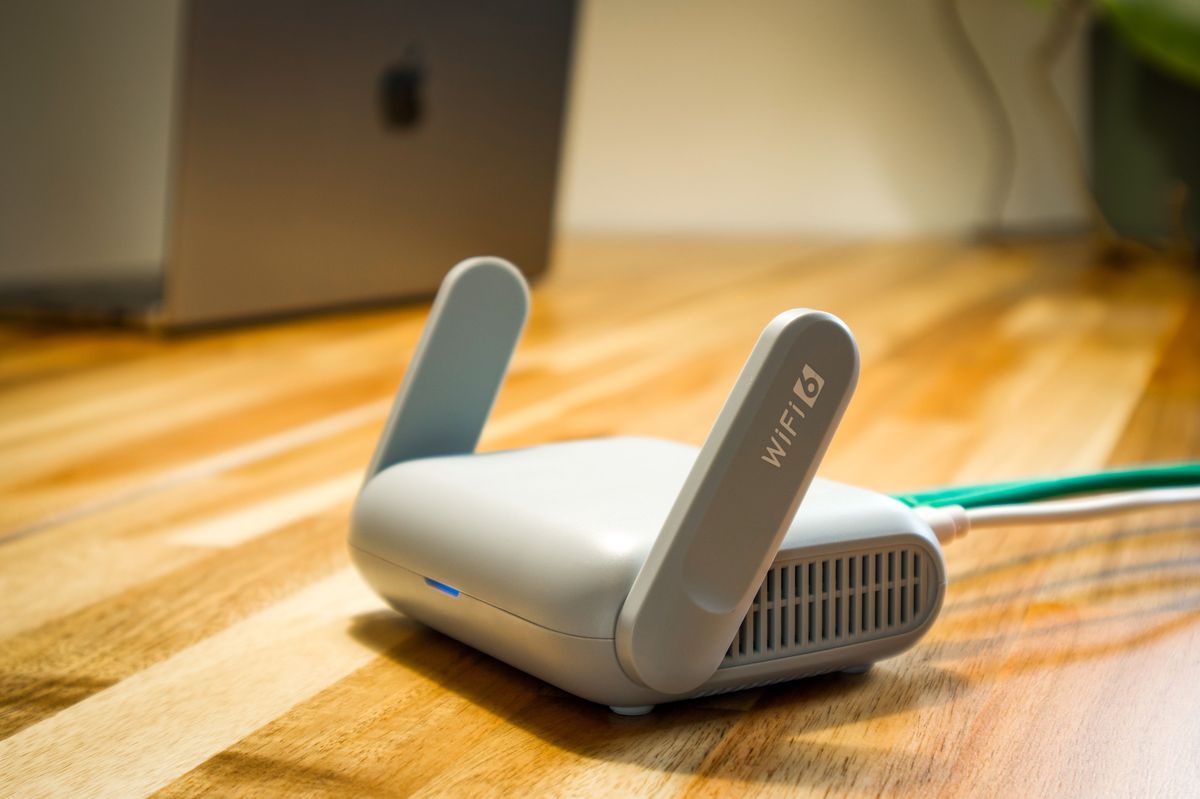
2.7 Wireless Networking: Wi-Fi Without the Mystery
The Standards (802.11)
Wi-Fi generations, oldest to newest:
| Standard | Wi-Fi Name | Frequency | Max Speed (theoretical) |
|---|---|---|---|
| 802.11b | — | 2.4 GHz | 11 Mbps |
| 802.11a | — | 5 GHz | 54 Mbps |
| 802.11g | — | 2.4 GHz | 54 Mbps |
| 802.11n | Wi-Fi 4 | 2.4 / 5 GHz | 600 Mbps |
| 802.11ac | Wi-Fi 5 | 5 GHz | ~3.5 Gbps |
| 802.11ax | Wi-Fi 6 / 6E | 2.4 / 5 / 6 GHz | ~9.6 Gbps |
| 802.11be | Wi-Fi 7 | 2.4 / 5 / 6 GHz | ~46 Gbps |
The trade-off that matters: 2.4 GHz travels farther and penetrates walls better but is slower and crowded (only 3 non-overlapping channels: 1, 6, 11). 5 GHz is faster with many more channels but shorter range. 6 GHz (Wi-Fi 6E/7) is fastest with the most room but the shortest reach — best for dense, open spaces.
> EXAM TIP: "A user complains of slow Wi-Fi in a crowded apartment building" — the 2.4 GHz band is congested; move devices to 5 GHz. "Wi-Fi doesn't reach the back office" — 2.4 GHz penetrates farther than 5 GHz. CompTIA tests the trade-off, not just the numbers.
Wi-Fi Security: From Broken to Solid
| Protocol | Encryption | Status |
|---|---|---|
| WEP | RC4 (weak, crackable in minutes) | Deprecated — never use |
| WPA | TKIP (interim fix) | Deprecated |
| WPA2 | AES-CCMP | Secure, widely used |
| WPA3 | SAE (stronger handshake) | Current best, required on new devices |
> EXAM TIP: If any answer choice is WEP and the question asks about security, WEP is the wrong answer — it's the "obviously insecure" distractor. WPA2 with AES is the safe default answer; WPA3 is the best answer when offered. Also know: an open network (no password, like coffee shops) has zero encryption — a VPN is the fix for using one safely.
Wireless Concepts
- SSID — the network name. Disabling SSID broadcast ("hiding" the network) is not real security — the network is still easily discoverable. CompTIA may present it as a distractor.
- Channels — on 2.4 GHz, use only 1, 6, or 11 to avoid overlap with neighbors.
- Enterprise vs Personal: WPA2-Personal uses a shared password (PSK). WPA2-Enterprise uses a RADIUS server for individual usernames/passwords — the right choice for businesses.
2.8 Network Types and Topologies
Network types describe scale:
| Type | Scale | Example |
|---|---|---|
| PAN | Personal (a few meters) | Bluetooth headphones to phone |
| LAN | Single building/campus | Office network |
| WLAN | Wireless LAN | Office Wi-Fi |
| MAN | City-wide | ISP connecting neighborhoods |
| WAN | Large geographic area | The internet itself |
Topologies describe how devices connect:
- Star — everything connects to a central switch. The standard for modern LANs. One cable failure affects one device; switch failure kills everything.
- Mesh — every device connects to multiple others. Maximum redundancy (used in WANs and some Wi-Fi systems). Expensive.
- Ring — devices in a circle, data travels one direction. Mostly legacy (old Token Ring, some fiber backbones).
- Bus — all devices share one cable. One break kills the whole network. Obsolete (old coaxial networks).
- Hybrid — combination, e.g., star topology within buildings connected in a mesh between buildings. Most real enterprise networks.
> EXAM TIP: "Which topology is most fault-tolerant?" Mesh. "Which does a modern office LAN use?" Star. "Which fails entirely if the backbone cable breaks?" Bus.
---
End-of-Chapter Test
1. A technician is setting up a secure website for online payments. Which port must be open on the firewall?
- A. 80
- B. 443
- C. 25
- D. 110
2. A user's computer has the IP address 169.254.10.44. What does this indicate?
- A. The DNS server is unreachable
- B. The DHCP server could not be contacted
- C. The default gateway is misconfigured
- D. The computer has a static IP address
3. Which OSI layer is responsible for logical addressing with IP addresses?
- A. Layer 2 – Data Link
- B. Layer 3 – Network
- C. Layer 4 – Transport
- D. Layer 7 – Application
4. A network administrator needs to connect two switches together in a wiring closet. Historically, which cable type was designed for this?
- A. Straight-through
- B. Crossover
- C. Rollover
- D. Coaxial
5. Which Wi-Fi encryption protocol should a technician recommend as the most secure choice for a new office network?
- A. WEP
- B. WPA with TKIP
- C. WPA2 with AES
- D. WPA3
6. A branch office with 45 computers expects to double in size within a year. Which subnet mask provides appropriate room for growth?
- A. 255.255.255.192 (/26)
- B. 255.255.255.128 (/25)
- C. 255.255.255.224 (/27)
- D. 255.255.255.0 (/24)
7. Which device forwards traffic based on MAC addresses?
- A. Hub
- B. Router
- C. Switch
- D. Repeater
8. A technician needs to run network cable through the air-handling space above a drop ceiling. Which cable rating is required?
- A. Riser-rated (PVC)
- B. Plenum-rated
- C. Outdoor-rated
- D. Shielded Cat5e
9. Which protocol is connectionless and best suited for live video streaming?
- A. TCP
- B. UDP
- C. ICMP
- D. SNMP
10. A user can access resources by IP address but not by hostname (e.g., ping 8.8.8.8 works but ping google.com fails). What is the most likely cause?
- A. Incorrect default gateway
- B. DHCP server is down
- C. Incorrect DNS server settings
- D. Faulty network cable
Answer Key
1. B — HTTPS (encrypted web traffic) uses port 443. Port 80 is unencrypted HTTP — never for payments. 2. B — 169.254.x.x is an APIPA address, assigned when no DHCP server responds. 3. B — Layer 3 (Network) handles IP addressing and routing. 4. B — Crossover cables (T568A one end, T568B the other) were designed for like-device connections such as switch-to-switch. (Modern Auto-MDIX ports make this unnecessary, but the concept is tested.) 5. D — WPA3 is the current strongest standard. WPA2/AES (C) is acceptable but not the most secure when WPA3 is offered. WEP and WPA/TKIP are deprecated. 6. B — 45 computers doubling = ~90 needed. /26 gives only 62 (too small); /25 gives 126 — the right size with growth room. (/24 would also work but wastes addresses; /25 is the best fit.) 7. C — Switches forward frames using MAC addresses (Layer 2). Routers use IP addresses; hubs repeat to all ports. 8. B — Plenum-rated cable has a fire-retardant jacket required by code for air-handling spaces. 9. B — UDP is connectionless and fast — ideal for streaming where speed beats reliability. 10. C — IP works but names don't = DNS problem. The gateway and cable are fine (IP connectivity works); DHCP is irrelevant once an address is assigned.