Chapter 3
Hardware
It's 2:47 AM, and Maya is staring at a dead workstation. The power button does nothing — no fans, no beeps, no lights. The user needs it running by 8 AM for a client presentation. Maya's first instinct is to blame the power supply, but she's learned the hard way that "dead" can mean a dozen different things: a failed PSU, a shorted motherboard, a CPU that overheated and shut down, or simply a power cable that worked itself loose.
This is the reality of hardware troubleshooting, and it's why CompTIA dedicates a full quarter of the Core 1 exam — 25%, the single largest domain — to hardware. You can't fake your way through this section. The exam doesn't just ask you to name parts; it asks you to reason about them. Given a set of symptoms, can you narrow the fault to the right component? Given a build list, can you spot the incompatibility? Given a budget, can you pick parts that actually work together?
This chapter is the deepest in the book because the exam demands it. We'll walk through every major component the way a technician actually encounters them: motherboards as the foundation, CPUs as the engine, RAM as the workspace, storage as the archive, power supplies as the lifeblood, displays as the window, and printers as the specialized output crew. Along the way, you'll get the stories, the math, and the exam traps that separate passing technicians from failing ones.
---
3.1 Motherboards: The City Grid
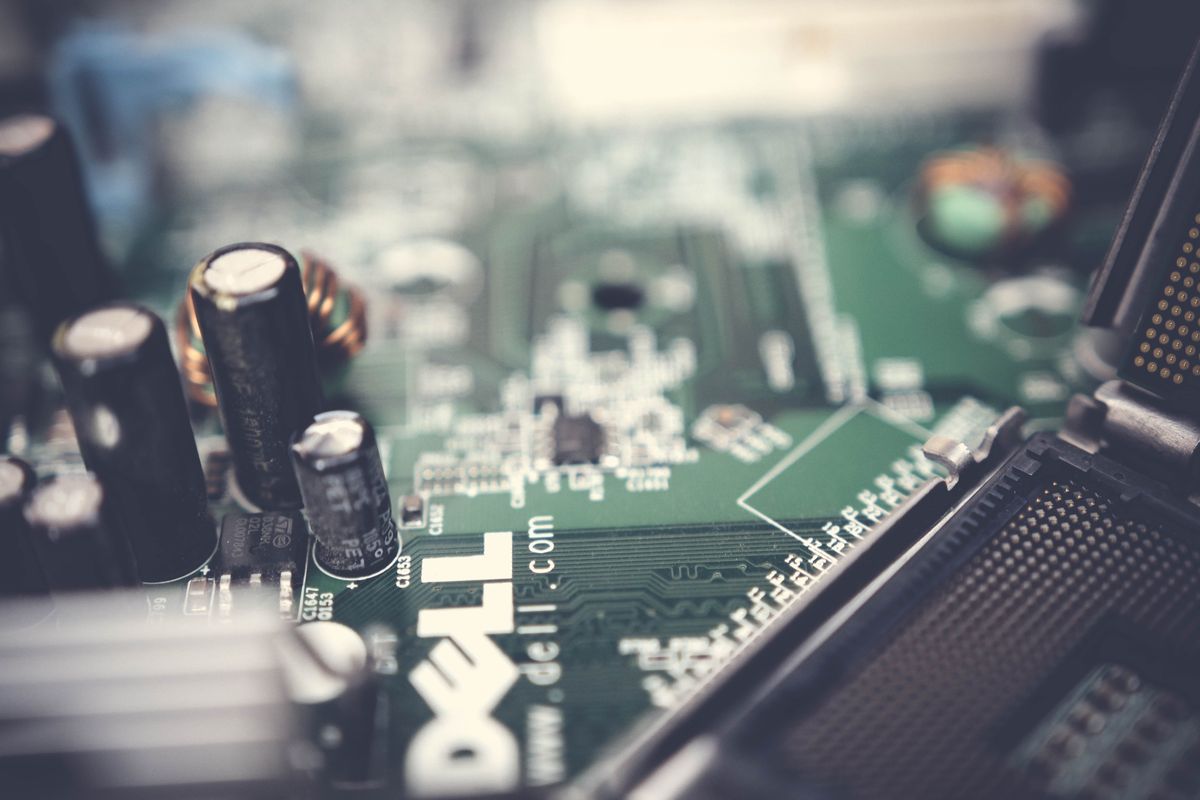
Think of a motherboard as a city's street grid. Every component is a building, and the motherboard's traces — those hair-thin copper lines etched into the board — are the streets connecting them. Data travels these streets as electrical signals, and just like a real city, the layout determines how fast everything moves and how much can fit.
Form Factors: Size Dictates Everything
The form factor is the motherboard's physical size and mounting-hole layout, and it's the first decision in any build because it constrains everything else — the case you can use, the number of expansion slots, even the cooling options.
| Form Factor | Dimensions | Typical Use | Expansion Slots |
|---|---|---|---|
| ATX | 12" × 9.6" (305 × 244 mm) | Standard desktops, gaming rigs | 7 |
| microATX | 9.6" × 9.6" (244 × 244 mm) | Budget builds, office PCs | 4 |
| Mini-ITX | 6.7" × 6.7" (170 × 170 mm) | Compact PCs, HTPCs | 1 |
| EATX (Extended ATX) | 12" × 13" (305 × 330 mm) | Workstations, servers | 7+ |
Here's the compatibility rule that the exam loves to test: a smaller motherboard fits in a larger case, but never the reverse. A microATX board drops perfectly into an ATX case (the mounting holes align — the standard is backward-compatible by design). But try to stuff an ATX board into a microATX case and you'll be staring at a board that physically doesn't fit. Mini-ITX fits in all three.
> EXAM TIP: CompTIA loves the "technician has the wrong parts" scenario. If a question describes a microATX case and an ATX motherboard, the answer is almost always "the motherboard doesn't fit — get a microATX or Mini-ITX board." They'll also test that Mini-ITX has only one PCIe slot, which matters when someone wants both a GPU and a capture card.
Expansion Slots: The PCIe Highway System
Modern motherboards connect expansion cards almost exclusively through PCI Express (PCIe) slots. The old PCI and AGP slots are museum pieces — if you see them mentioned on the exam, it's in a "which of these is legacy?" question.
PCIe slots come in sizes denoted by lane count: x1, x4, x8, and x16. The number tells you how many data lanes the slot provides, and each lane is a bidirectional serial connection. A graphics card wants an x16 slot (maximum bandwidth); a Wi-Fi card is happy in an x1.
The beautiful thing about PCIe is its flexibility:
- A smaller card fits in a larger slot (an x1 Wi-Fi card works fine in an x16 slot)
- A larger card physically doesn't fit in a smaller slot (unless the slot has an open-ended connector, a detail CompTIA occasionally tests)
PCIe generations double the bandwidth with each version. This is a favorite exam calculation area:
| Generation | Bandwidth per Lane | x16 Slot Total |
|---|---|---|
| PCIe 3.0 | ~1 GB/s | ~16 GB/s |
| PCIe 4.0 | ~2 GB/s | ~32 GB/s |
| PCIe 5.0 | ~4 GB/s | ~64 GB/s |
PCIe is backward and forward compatible across generations — a PCIe 4.0 GPU works in a PCIe 3.0 slot, just at 3.0 speeds. The exam loves this: "A technician installs a PCIe 4.0 NVMe drive in a PCIe 3.0 M.2 slot. What happens?" Answer: it works, but at PCIe 3.0 speeds. No damage, no error, just reduced bandwidth.
> EXAM TIP: When CompTIA asks about a GPU "underperforming," check the slot first. A high-end GPU in an x8 slot (because the x16 slot is blocked or the board shares lanes) loses measurable performance. Also watch for M.2 slots that disable SATA ports when populated — the motherboard manual's lane-sharing diagram is the technician's best friend, and the exam expects you to know these conflicts exist.
Chipsets: The Traffic Controllers
The chipset is the set of chips on the motherboard that manages data flow between the CPU, RAM, storage, and peripherals. On modern boards, it's essentially one chip (Intel calls it the PCH — Platform Controller Hub; AMD calls it the chipset, e.g., B650 or X670).
Why does the chipset matter for the exam? Three reasons:
- It determines CPU compatibility. An Intel B760 chipset supports 12th/13th/14th-gen CPUs; it won't take a Core Ultra (which needs an 800-series chipset). AMD's B650 supports Ryzen 7000/8000/9000 on the AM5 socket.
- It determines feature support. Higher-end chipsets (Z790, X670E) offer CPU overclocking, more PCIe lanes, more USB ports, and RAID support. Budget chipsets (H610, A620) cut these features.
- It determines connectivity. The number of SATA ports, M.2 slots, and USB ports all flow from the chipset.
> EXAM TIP: A classic exam trap: "A technician wants to overclock an Intel CPU. Which chipset should they choose?" The answer is a Z-series (Z790), not B-series or H-series. For AMD, it's X-series or B-series (both allow overclocking on AMD — unlike Intel's segmentation). CompTIA tests this Intel/AMD difference.
Board Connectors You'll Touch
Beyond slots, the motherboard bristles with connectors the exam expects you to recognize:
- 24-pin ATX: Main power from the PSU. On older boards it was 20-pin; the extra 4 pins deliver more 12V/5V/3.3V power for hungry modern boards.
- 4+4 pin EPS / CPU power: Dedicated 12V power for the CPU, usually top-left of the board. High-end boards may have two.
- Front panel connectors: The tiny, infuriating pins for the power button, reset button, power LED, and HDD activity LED. Every technician has a story about these.
- USB headers: Internal connectors for front-panel USB ports (USB 2.0, USB 3.x, and USB-C headers all look different).
- Fan headers: 3-pin (voltage speed control) vs. 4-pin PWM (pulse-width modulation — finer speed control). A 3-pin fan works on a 4-pin header and vice versa.
- CMOS battery: The CR2032 coin cell that powers the RTC (real-time clock) and retains BIOS/UEFI settings when the PC is unplugged. When a PC "forgets" the time or resets BIOS settings, this $2 battery is the culprit.
> EXAM TIP: "The system clock resets every time the PC is unplugged" = dead CMOS battery. This is one of CompTIA's most repeated questions. The fix takes 30 seconds and costs almost nothing, which is exactly why they love it — it tests whether you know the simple answer before reaching for complex ones.
3.2 CPUs: The Engine Room
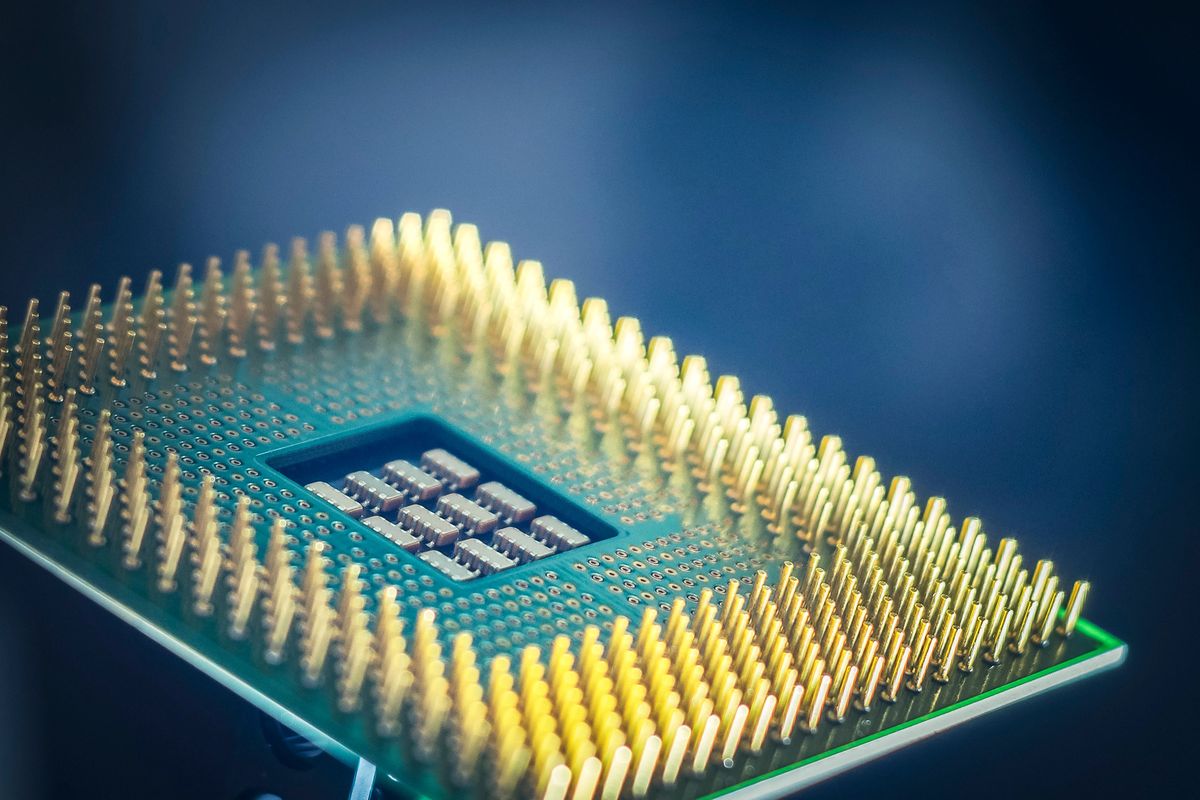
If the motherboard is the city grid, the CPU is the downtown core where all the real work happens. Every click, every calculation, every pixel on screen was at some point a set of instructions decoded and executed by this single chip. And yet for all its importance, the CPU is also one of the simplest components to install and one of the easiest to destroy — a paradox that makes it prime exam territory.
Sockets: The Throne Must Fit the King
A CPU socket is the physical and electrical interface between the processor and the motherboard. The cardinal rule — the one CompTIA will test in at least three different ways — is: the CPU socket and the motherboard socket must match exactly. An Intel CPU will never fit in an AMD socket, and even within the same brand, sockets change every couple of generations.
There are two socket designs, and the difference is where the delicate pins live:
- LGA (Land Grid Array): The pins are on the motherboard socket; the CPU has flat contact pads. Used by Intel (LGA1700, LGA1851) and AMD's newer server/workstation platforms. Advantage: if you bend pins, you damaged the motherboard (cheaper to replace than a CPU... usually).
- PGA (Pin Grid Array): The pins are on the CPU itself; the motherboard has holes. Used by AMD's AM4 socket. Advantage: motherboards are cheaper to make. Disadvantage: drop the CPU and those pins bend like grass in the wind.
Current sockets you need to know for the 220-1201:
| Socket | Brand | CPUs | Pin Count |
|---|---|---|---|
| LGA1700 | Intel | 12th/13th/14th gen Core | 1700 |
| LGA1851 | Intel | Core Ultra (Series 2) | 1851 |
| AM5 | AMD | Ryzen 7000/8000/9000 | 1718 (LGA-style) |
| AM4 | AMD | Ryzen 1000–5000 | 1331 (PGA) |
Notice that AMD switched from PGA to LGA with AM5 — a detail the exam has started probing. The story behind it: as pin counts climbed past 1,700, PGA pins became too fragile and too dense. LGA puts the fragility on the socket, where a protective cover ships with every motherboard.
> EXAM TIP: The exam loves "upgrade gone wrong" scenarios. "A technician tries to install a Ryzen 7 7800X3D into a B550 motherboard. What happens?" The 7800X3D needs AM5; B550 is AM4. It physically won't fit — different socket, different pin layout. The correct answer is always some version of "incompatible socket; the CPU and motherboard must use the same socket." They'll also test that you can't mix Intel and AMD, which sounds obvious until you're staring at four similar-looking answer choices under time pressure.
Cores, Threads, and the Parallel Revolution
A core is an independent processing unit inside the CPU. A quad-core CPU is, roughly speaking, four processors sharing one package. A thread is a sequence of instructions; with hyperthreading (Intel) or SMT (AMD), each physical core can handle two threads simultaneously by keeping two sets of architectural state.
So when you see "8 cores / 16 threads," that means 8 physical cores, each juggling 2 threads — 16 instruction streams in flight at once.
Modern CPUs complicate this with hybrid architectures (Intel 12th-gen and later): P-cores (Performance cores) handle heavy tasks like gaming and rendering, while E-cores (Efficiency cores) handle background tasks like email syncing and Windows updates. It's like having both a sports car and a bicycle in the garage — you don't take the sports car to check the mailbox.
> EXAM TIP: CompTIA wants you to know that more cores help with multitasking and multithreaded workloads (video editing, virtualization, compiling code), but a single-threaded task (many older games, some office apps) cares more about clock speed. If a question asks "which CPU is best for running many VMs simultaneously?" — pick the one with more cores. If it asks about "best single-application performance" — look at clock speed.
Cache: Memory's Front Porch
CPU cache is tiny, blisteringly fast memory built directly into the processor. It exists because RAM — fast as it is — is still ~100x slower than the CPU. Without cache, the CPU would spend most of its time waiting.
Cache is organized in levels:
- L1: Smallest (~64KB–128KB per core), fastest, split into instruction and data caches. Runs at full CPU speed.
- L2: Larger (~1–2MB per core), slightly slower. Each core usually has its own.
- L3: Largest (16–128MB+), shared across all cores. Slightly slower still, but vastly faster than RAM.
When the CPU needs data, it checks L1 first, then L2, then L3, then RAM, then storage. Each step down is an order of magnitude slower. This hierarchy is why "more cache" shows up in gaming CPU reviews — games with large, unpredictable datasets benefit enormously from a big L3 (AMD's 3D V-Cache, with its stacked 96MB+ L3, exists precisely for this).
Clock Speed, Boost, and Thermal Reality
Clock speed (measured in GHz) is how many cycles per second the CPU executes. A 5.0 GHz CPU ticks 5 billion times per second. But modern CPUs don't run at one speed — they have a base clock (guaranteed under full load) and a boost clock (maximum for short bursts on lightly-loaded cores).
Here's what the exam wants you to understand: boost clocks are thermally limited. A CPU can only hit 5.7 GHz if it's cool enough. The moment temperatures climb, it throttles back. This is why cooling isn't optional decoration — it's a performance component.
Thermal throttling is the CPU's self-preservation: when it hits ~95–100°C (TjMax), it reduces clock speed to prevent damage. Symptoms of throttling: sudden performance drops under sustained load, stuttering in games after 20 minutes, a workstation that's fast in the morning and sluggish by afternoon.
> EXAM TIP: "A computer runs fine for 30 minutes then slows dramatically" is a textbook thermal throttling question. The answer path: check CPU temperatures → find dust-clogged heatsink or failed fan → clean/replace. CompTIA also tests that you should check temperatures first before replacing parts — don't throw a new CPU at a cooling problem.
Cooling: Air vs. Liquid
| Air Cooling | Liquid Cooling (AIO) | |
|---|---|---|
| How it works | Metal heatsink + fan dissipates heat into case air | Pump circulates liquid to a radiator; fans blow through radiator |
| Performance | Good for most CPUs | Better for high-TDP CPUs, overclocking |
| Noise | Louder under load (fan spins faster) | Quieter (larger, slower fans) |
| Failure mode | Fan dies → overheating (obvious) | Pump dies → rapid overheating (silent killer) |
| Maintenance | Dust the fins | Check for leaks, pump noise |
| Exam relevance | Stock coolers, thermal paste application | "AIO" = All-in-One; radiator mounting orientation |
Thermal paste deserves its own mention because the exam tests it directly. It fills microscopic gaps between the CPU heat spreader and the heatsink — air is a terrible thermal conductor, and even mirror-smooth metal has valleys at the microscopic level. Apply a pea-sized dot in the center; the mounting pressure spreads it. Too much paste insulates; too little leaves air gaps. And if you remove the heatsink, always clean off old paste (isopropyl alcohol, 90%+) and apply fresh.
> EXAM TIP: Two thermal paste questions appear regularly: (1) "What is thermal paste for?" — to fill air gaps and improve heat transfer between CPU and heatsink. (2) "A technician removed the heatsink to inspect the CPU. What must they do before reinstalling?" — clean and reapply thermal paste. Never reuse old paste.
3.3 RAM: The Workbench
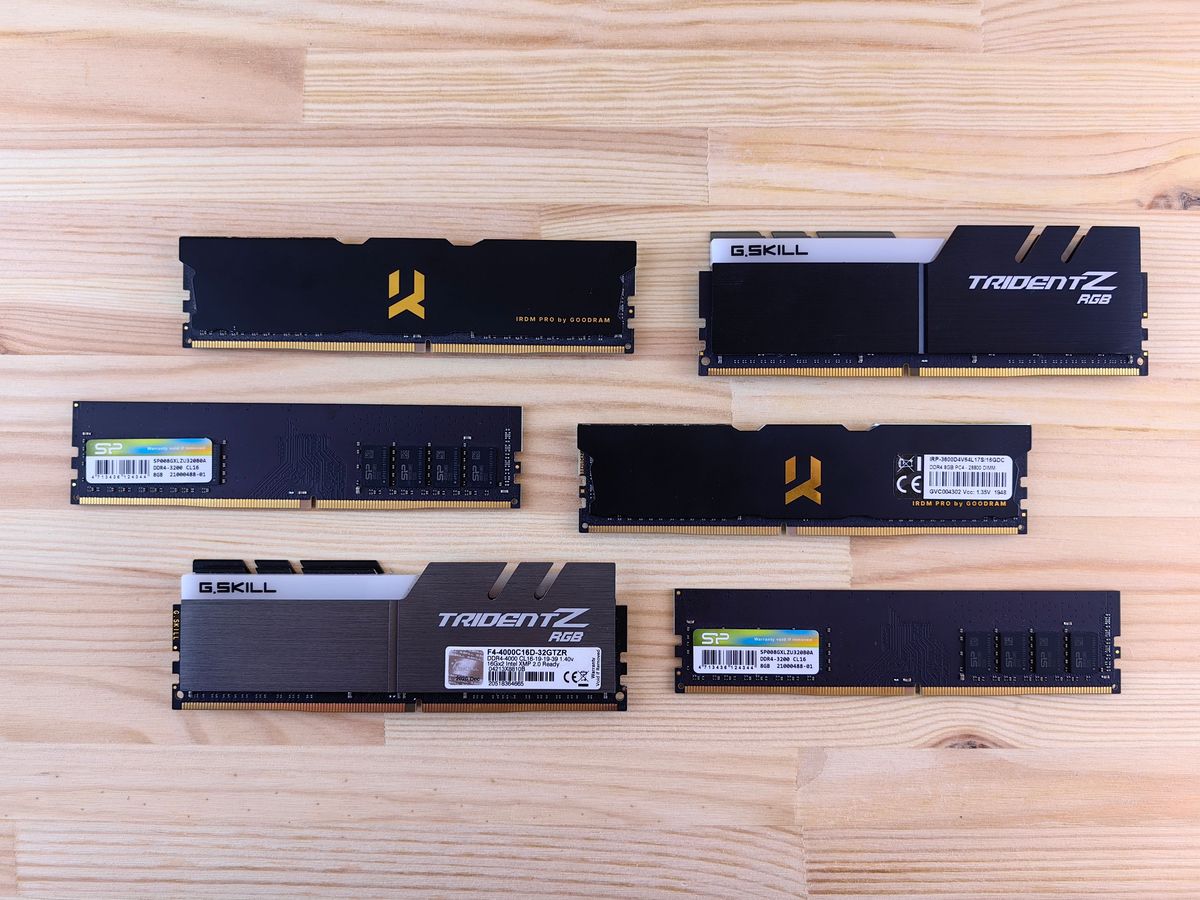
If the CPU is the chef, RAM is the kitchen counter. The chef (CPU) can only work with ingredients (data) that are on the counter (RAM). Ingredients in the pantry (storage) have to be fetched first, which takes time. A bigger counter means more ingredients within arm's reach; a faster counter means the chef grabs them quicker. But a bigger counter doesn't make the chef smarter — and this is the single most misunderstood concept in all of PC hardware.
Adding more RAM does not make a computer faster — unless the computer was starved for RAM. If your system uses 6GB and you have 16GB installed, adding another 16GB changes absolutely nothing. The exam tests this mercilessly: "A user with 16GB RAM complains about slow performance. Task Manager shows 40% memory usage. Should the technician add more RAM?" No — the bottleneck is elsewhere (CPU, storage, or software).
DDR Generations: The Notch Never Lies
DDR (Double Data Rate) RAM has evolved through generations, and each generation is physically and electrically incompatible with the others. The notch — that little cutout on the bottom edge — is in a different position for each generation, so you physically cannot insert DDR4 into a DDR5 slot. The motherboard enforces this at the hardware level because the voltages and signaling are different.
| DDR3 | DDR4 | DDR5 | |
|---|---|---|---|
| Desktop pins | 240 | 288 | 288 |
| Laptop (SO-DIMM) pins | 204 | 260 | 262 |
| Voltage | 1.5V | 1.2V | 1.1V |
| Typical speeds | 800–2133 MT/s | 2133–3200 MT/s | 4800–6400+ MT/s |
| Max module | 8GB | 32GB | 128GB |
The voltage drop with each generation isn't trivia — it's the reason for each generation. Lower voltage means less power, less heat, and higher achievable speeds. DDR5's 1.1V (with onboard power management) is what enables those 6400+ MT/s speeds.
> EXAM TIP: "MT/s" (megatransfers per second) vs. "MHz" is a classic trap. DDR stands for Double Data Rate — it transfers twice per clock cycle. DDR4-3200 runs at a 1600 MHz clock but achieves 3200 MT/s. If a question gives you a MHz number for DDR RAM, double it to get the transfer rate. CompTIA will mix these up in answer choices.
Channels: Why RAM Comes in Pairs
Modern memory controllers support multi-channel operation — accessing two (dual), four (quad), or more RAM modules simultaneously, effectively multiplying bandwidth. But channels only activate with the right physical configuration:
- Dual channel needs two matched modules (same capacity, speed, and ideally same model) in the correct slots — usually slots A2 and B2 (the second and fourth slots from the CPU). Check the motherboard manual; it's always diagrammed.
- Populating all four slots on a dual-channel board doesn't give you quad channel — it gives you two pairs running in dual-channel mode (sometimes called "dual-channel interleaved").
The performance gain from dual-channel is real but modest for most tasks (~5–15%), except integrated graphics, which use system RAM as video memory and can gain 30–50% from dual-channel. This is why every budget gaming build guide screams "two sticks, not one!"
Latency: The CAS Number Nobody Understands
RAM speed (MT/s) gets all the marketing, but CAS latency (CL) measures delay in clock cycles. Lower is better. DDR4-3200 CL16 and DDR4-3600 CL18 have roughly similar real-world latency because the higher clock speed compensates for the higher CAS number.
True latency in nanoseconds = (CAS Latency ÷ Transfer Rate in MHz) × 1000... but using MT/s, it's (CL ÷ (MT/s ÷ 2)) × 1000.
WORKED EXAMPLE: Comparing RAM Latency
Which has lower true latency: DDR4-3200 CL16 or DDR5-5600 CL36?
DDR4-3200 CL16:
- Clock speed = 3200 ÷ 2 = 1600 MHz
- True latency = (16 ÷ 1600) × 1000 = 10.0 ns
DDR5-5600 CL36:
- Clock speed = 5600 ÷ 2 = 2800 MHz
- True latency = (36 ÷ 2800) × 1000 = 12.9 ns
The DDR4 actually has lower latency! But the DDR5 has far higher bandwidth (44.8 GB/s vs. 25.6 GB/s per channel). For gaming, bandwidth usually wins. For latency-sensitive tasks (some simulations, audio production), the DDR4 might edge ahead. The exam won't make you calculate nanoseconds, but it will test that you understand speed and latency are different things.
Bandwidth Calculation
Memory bandwidth = Transfer Rate (MT/s) × 8 bytes (64-bit bus width).
WORKED EXAMPLE: Dual-Channel Bandwidth
A system has two DDR4-3200 modules in dual-channel mode. What's the total theoretical bandwidth?
- Single module: 3200 MT/s × 8 bytes = 25,600 MB/s = 25.6 GB/s
- Dual channel doubles it: 25.6 × 2 = 51.2 GB/s
> EXAM TIP: If a question asks for the bandwidth of a single DDR4-3200 module, it's 25.6 GB/s (often rounded to 25.6 or listed as "PC4-25600" — the module naming convention literally encodes the bandwidth: 25,600 MB/s). Dual-channel doubles it. The "PC4-xxxxx" number is just MT/s × 8. So DDR5-5600 = PC5-44800.
When RAM Fails
Bad RAM produces some of the most confusing symptoms in all of troubleshooting: random blue screens, corrupted files, applications crashing with no pattern, and failed OS installs. The exam's favorite RAM-failure scenario is "random BSODs with different error codes each time" — different codes is the key detail, because a single consistent error points to a driver, while varied errors scream hardware, usually RAM.
The diagnostic tool is a memory test — MemTest86 or Windows Memory Diagnostic — run from a bootable USB (not from within the OS, because you can't reliably test the RAM that the OS is currently using).
3.4 Storage: The Archive
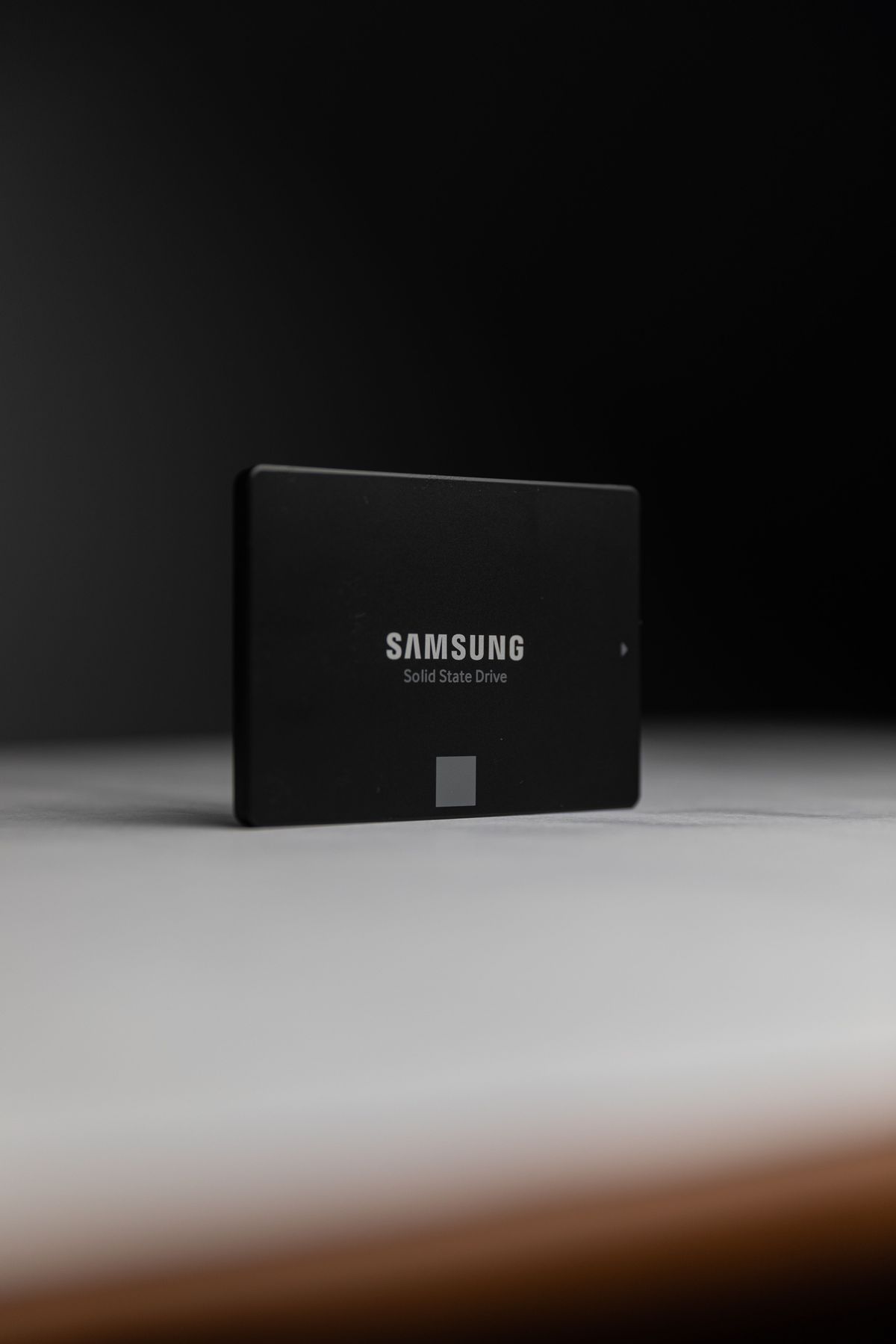
Storage is where data lives when the power's off, and the last decade has seen the most dramatic transformation of any PC component. The spinning hard drive — king for 50 years — has been dethroned by silent, shockproof silicon. But HDDs aren't dead, and understanding when each technology wins is exactly what the exam tests.
HDD vs. SSD: Physics vs. Electronics
A hard disk drive (HDD) stores data magnetically on spinning platters. A read/write head floats nanometers above the surface on a cushion of air — a marvel of engineering and a mechanical nightmare. Moving parts mean: vulnerable to drops and vibration, slower access (the head must physically seek to the right track), audible noise, and higher power draw.
A solid-state drive (SSD) stores data in NAND flash memory chips — no moving parts. The result: near-instant access times (~0.1ms vs. ~10ms for HDD), silent operation, drop-proof, and lower power. The trade-off is cost per gigabyte (though the gap narrows yearly) and finite write endurance (measured in TBW — terabytes written).
When does each win?
- SSD: OS drive (the single biggest performance upgrade for any old PC), laptops (shock resistance), anything where speed matters
- HDD: Bulk archival storage, NAS boxes, surveillance video — anywhere you need terabytes cheaply and speed doesn't matter
> EXAM TIP: "What's the best upgrade for a slow 5-year-old laptop?" If it has a spinning HDD, the answer is always "replace the HDD with an SSD" — not more RAM, not a new CPU. This is CompTIA's favorite practical question because it's the correct real-world answer too. An SSD upgrade makes an old machine feel brand new.
Interfaces: SATA, NVMe, and the Alphabet Soup
The interface determines the maximum speed, and this is where exam questions live:
| Interface | Max Theoretical | Real-World | Connector |
|---|---|---|---|
| SATA III | 6 Gb/s (~750 MB/s) | ~550 MB/s | SATA data + power |
| NVMe (PCIe 3.0 x4) | ~32 Gb/s | ~3,500 MB/s | M.2 |
| NVMe (PCIe 4.0 x4) | ~64 Gb/s | ~7,000 MB/s | M.2 |
| NVMe (PCIe 5.0 x4) | ~128 Gb/s | ~14,000 MB/s | M.2 |
Note the units: interfaces are measured in gigabits (Gb/s), but drive speeds are usually quoted in megabytes (MB/s). Divide by 8 to convert. SATA III's 6 Gb/s = 750 MB/s theoretical, ~550 MB/s after overhead.
M.2 is a form factor, not an interface — and this distinction is critical. An M.2 slot can carry either SATA signals or NVMe (PCIe) signals, depending on the drive and the slot's wiring. The physical keying tells you:
- B key (6 pins): SATA or PCIe x2
- M key (5 pins): PCIe x4 (NVMe) — the common one for fast SSDs
- B+M key: Works in either, usually a SATA M.2 drive
The number in "M.2 2280" is dimensions: 22mm wide, 80mm long. 2280 is the desktop standard; laptops sometimes use 2242 or 2230.
> EXAM TIP: The exam's favorite M.2 trap: "A technician installs an NVMe M.2 drive but it only runs at SATA speeds." Possible causes: (1) They bought a SATA M.2 drive by mistake (check the label — it happens constantly), (2) the M.2 slot only supports SATA mode, or (3) the BIOS is set to SATA mode for that slot. Also remember: populating some M.2 slots disables specific SATA ports on the motherboard — always check the manual's lane-sharing table.
RAID: Redundancy Is Not Backup
RAID (Redundant Array of Independent Disks) combines multiple drives for performance, redundancy, or both. The exam tests RAID levels relentlessly, and the key insight is: RAID protects against drive failure, not against deletion, corruption, ransomware, or fire. "Redundancy is not backup" should be tattooed on every technician's forearm.
| Level | Name | Min Disks | How It Works | Usable Capacity | Fault Tolerance |
|---|---|---|---|---|---|
| 0 | Striping | 2 | Data split across disks | 100% (sum of all) | None — one disk dies, all data lost |
| 1 | Mirroring | 2 | Identical copy on each disk | 50% (one disk's worth) | 1 disk |
| 5 | Striping + parity | 3 | Data + parity distributed | (n-1)/n | 1 disk |
| 6 | Double parity | 4 | Two parity blocks | (n-2)/n | 2 disks |
| 10 | Mirror + stripe | 4 | Mirrored pairs, then striped | 50% | 1 per mirror pair |
WORKED EXAMPLE: RAID Usable Capacity
A server has six 4TB drives. What's the usable capacity in RAID 5? In RAID 6? In RAID 10?
RAID 5: (n-1) × smallest disk = (6-1) × 4TB = 20TB usable. One disk's worth is sacrificed to parity.
RAID 6: (n-2) × smallest disk = (6-2) × 4TB = 16TB usable. Two disks' worth goes to double parity.
RAID 10: (n÷2) × smallest disk = (6÷2) × 4TB = 12TB usable. Half the raw capacity — mirroring is expensive.
WORKED EXAMPLE: The Mixed-Drive Trap
A RAID 5 array has three drives: 2TB, 4TB, and 4TB. What's the usable capacity?
The array treats every disk as the size of the smallest disk: (3-1) × 2TB = 4TB. The extra 2TB on each larger drive is completely wasted. This is why the exam (and real life) insists on matched drives for RAID.
> EXAM TIP: RAID 0 is the trap answer. It has zero redundancy (the "0" is a cruel mnemonic — it stands for the amount of fault tolerance). If a question asks "which RAID level provides redundancy?" and RAID 0 is an option, it's there to catch speed-readers. Also: RAID 5 needs a minimum of 3 disks, RAID 6 needs 4, RAID 10 needs 4. CompTIA loves asking for minimum disk counts.
3.5 Power Supplies: The Lifeblood
Every component we've discussed is useless without clean, stable power — and the power supply unit is the most underappreciated component in the entire PC. Builders will spend $800 on a GPU and $40 on the PSU that feeds it, which is like putting discount tires on a sports car. When a PSU fails, it doesn't always die quietly; a cheap unit can take the motherboard, CPU, and GPU with it in a surge of unregulated voltage.
Sizing: The Wattage Math
PSU sizing is straightforward arithmetic with one critical rule: add 20–30% headroom above your calculated maximum draw. This isn't waste — it keeps the PSU in its efficiency sweet spot (typically 40–60% load), leaves room for upgrades, and prevents the unit from running at redline.
WORKED EXAMPLE: Sizing a Gaming Build
Calculate the PSU for this system:
- CPU: Ryzen 7 7800X3D — 120W (TDP)
- GPU: RTX 4070 — 200W (TBP)
- Motherboard + RAM (2× DDR5): ~80W
- NVMe SSD + fans + peripherals: ~50W
Step 1 — Sum the maximum draw: 120 + 200 + 80 + 50 = 450W
Step 2 — Add 30% headroom: 450 × 1.3 = 585W
Step 3 — Round up to the nearest standard size: Standard sizes: 450W, 550W, 650W, 750W, 850W... 585W → 650W PSU
A 650W unit from a reputable brand with 80 Plus Gold is the correct answer. A 550W would work but run hot and loud near its limit; a 1000W is wasted money (though harmless — the PC only draws what it needs).
> EXAM TIP: Use TDP (CPU) and TBP (GPU) as the draw numbers — they're printed on every spec sheet. If a question gives you component wattages, sum them and multiply by 1.2–1.3. The most common trap is an answer choice that's exactly the sum with no headroom — it's always wrong.
80 Plus: The Efficiency Ladder
The 80 Plus certification measures how efficiently a PSU converts wall power (AC) to component power (DC). Higher efficiency = less wasted as heat = lower electricity bills and quieter operation.
From lowest to highest: Standard → Bronze → Silver → Gold → Platinum → Titanium
Each tier guarantees minimum efficiency at 20%, 50%, and 100% load (e.g., 80 Plus Gold: 87% / 90% / 87% at 115V). For the exam, you need the order and the concept — not the exact percentages.
Rails: Single vs. Multi
The 12V rail delivers most of the power in a modern PC (CPUs and GPUs run on 12V). PSUs come in two designs:
- Single rail: One 12V output with the full wattage available. Simpler; no balancing needed. If the PSU is 650W, the 12V rail can deliver ~648W.
- Multi-rail: The 12V output is split into multiple rails, each with its own overcurrent protection (e.g., 4 rails × 25A). Safer — a short on one rail trips only that rail — but you must balance loads across rails.
For the exam: multi-rail is safer (better protection), single-rail is simpler (no load-balancing headaches). Neither is universally "better."
Connectors: Know Them by Sight
| Connector | Pins | Powers | Notes |
|---|---|---|---|
| 24-pin ATX | 24 | Motherboard | Main power; was 20-pin on ancient boards |
| 4+4 pin EPS | 8 | CPU | Splits for backward compatibility with 4-pin boards |
| 6+2 pin PCIe | 8 | GPU | 6-pin = 75W, 8-pin = 150W; high-end GPUs need 2–3 |
| SATA power | 15 | SSDs, HDDs, optical | L-shaped, distinct from data cable |
| Molex | 4 | Legacy fans, old drives | Obsolete but still on exam as "legacy" |
> EXAM TIP: The 6+2 pin PCIe connector is a favorite. It can function as either a 6-pin or 8-pin GPU connector — the "+2" detaches. If a question describes a GPU needing an 8-pin connector and the PSU has a "6+2," the answer is "use the 6+2 as an 8-pin." Also: never use SATA-to-PCIe power adapters for high-draw GPUs — it's a fire risk and the exam treats it as a safety violation.
3.6 Displays: The Window
Monitors are the component users stare at for eight hours a day, yet buyers obsess over the wrong specs. They'll pay extra for a 4K panel and ignore the TN panel's washed-out colors, or buy a 240Hz monitor for spreadsheet work. As a technician, your job is matching the display to the use case — and the exam tests exactly that judgment.
Panel Types: The Three-Way Trade-off
No panel technology wins at everything. Each trades color accuracy, speed, and contrast:
| TN (Twisted Nematic) | IPS (In-Plane Switching) | VA (Vertical Alignment) | OLED | |
|---|---|---|---|---|
| Response time | Fastest (~1ms) | Good (~4ms) | Slowest (~5ms+) | Instantaneous |
| Color accuracy | Poor | Best (of LCDs) | Good | Excellent |
| Viewing angles | Poor (color shifts) | Excellent | Decent | Perfect |
| Contrast | Weak (~1000:1) | Weak (~1000:1) | Best LCD (~3000:1) | Infinite (true blacks) |
| Price | Cheapest | Mid-range | Mid-range | Expensive |
| Best for | Competitive esports | Design, office, general | Movies, dark-room use | Premium everything |
| Weakness | Looks washed out | "IPS glow" in dark scenes | Smearing in fast motion | Burn-in risk, cost |
> EXAM TIP: Match the panel to the user: graphic designer → IPS (color accuracy). Competitive FPS gamer → TN or fast IPS (response time). Movie watcher → VA (contrast) or OLED. Office worker → IPS (viewing angles for collaboration). CompTIA frames these as "a customer needs X, which panel?" — identify the priority (color, speed, or contrast) and the answer follows.
Resolution, Refresh Rate, and the Numbers That Matter
Resolution is pixel count (width × height):
- 1080p / FHD: 1920 × 1080 — the baseline
- 1440p / QHD: 2560 × 1440 — the sweet spot for 27"
- 4K / UHD: 3840 × 2160 — four times 1080p's pixels
Refresh rate (Hz) is how many times per second the image updates. 60Hz is standard; 144Hz+ is for gaming. Response time (ms) is how fast a pixel changes color — lower is better, and anything above ~5ms causes visible ghosting in fast motion.
The exam trap: these are independent. A 4K 60Hz monitor and a 1080p 240Hz monitor serve completely different users. Don't let a question's impressive-sounding spec distract from what the user actually needs.
Display Connectors
| Connector | Max Capability | Notes |
|---|---|---|
| HDMI | 4K@120Hz (v2.1) | Carries audio; the living-room standard |
| DisplayPort | 8K@60Hz (v2.1) | Carries audio; the PC standard; daisy-chaining |
| USB-C | Varies (Alt Mode) | Single-cable docking (video + data + power) |
| DVI | 2560×1600 (dual-link) | Legacy; no audio |
| VGA | Analog, ~2048×1536 | Legacy analog; susceptible to ghosting |
> EXAM TIP: "No signal" on a new monitor build? Check the cable is plugged into the GPU, not the motherboard's onboard video (the classic first-build mistake). If using onboard graphics, ensure the CPU actually has integrated graphics — AMD Ryzen chips without a "G" suffix (e.g., 7800X3D) have no iGPU, and the motherboard video ports will be dead.
---
3.7 Printers: The Output Crew
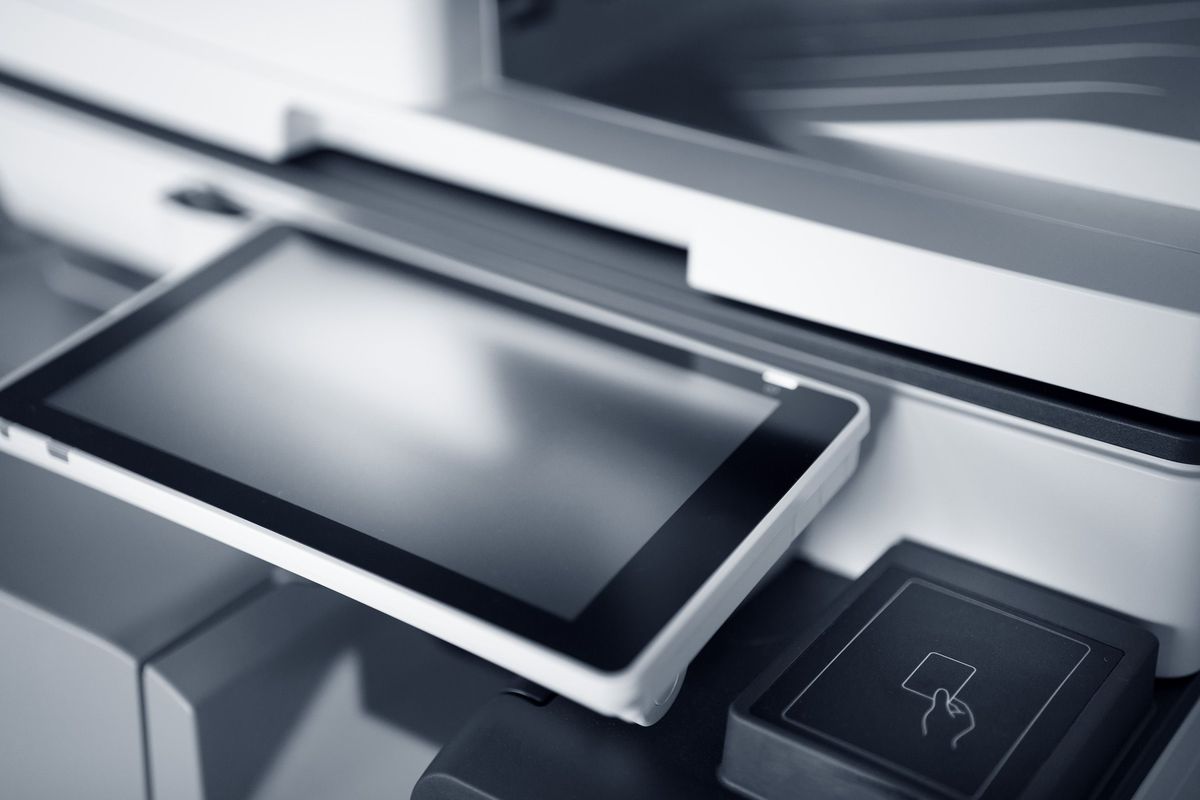
Printers are where hardware meets chemistry and physics, and the laser printing process is one of the most-tested sequences on the entire Core 1 exam. Technicians who memorize the seven steps as a story — not a list — never miss these questions.
Laser Printing: The Seven Steps
A laser printer creates images with static electricity and powdered plastic (toner). The process is a precise choreography:
- Processing: The printer's formatter board converts the print job into a raster image — a dot-by-dot map of the page.
- Charging: The primary corona wire (or charge roller) applies a uniform negative charge to the photosensitive drum.
- Exposing: The laser scans across the drum, neutralizing the charge wherever text or images should appear. This "writes" an invisible electrostatic image.
- Developing: The drum rolls past the toner hopper. Positively charged toner particles are attracted to the neutralized (less negative) areas — the image becomes visible as toner on the drum.
- Transferring: The transfer corona wire applies a positive charge to the paper, pulling the negatively charged toner off the drum and onto the page.
- Fusing: The paper passes through the fuser assembly — heated rollers (up to 200°C/400°F) that melt the toner permanently into the paper fibers.
- Cleaning: A rubber blade scrapes residual toner off the drum, and a discharge lamp neutralizes any remaining charge. The drum is reset for the next page.
Memory aid: "People Chase Every Dream Till Fruition Comes" — Processing, Charging, Exposing, Developing, Transferring, Fusing, Cleaning.
Why does the exam care? Because each step maps to a specific failure:
- Faded prints, repeating defects at regular intervals → damaged drum (the circumference of the defect matches the drum's circumference)
- Toner smears when touched → fuser failure (toner never melted into the page)
- Blank pages → transfer corona failure (toner never left the drum)
- Ghosted images (faint repeat of previous page) → cleaning step failure
> EXAM TIP: The fuser is HOT — up to 400°F. Any question mentioning burns, heat warnings, or "allow to cool before servicing" is about the fuser assembly. Also: never use regular vacuum cleaners on toner spills (toner particles are so fine they pass through standard filters and the static can ignite them) — use a toner-rated vacuum or a damp cloth.
Inkjet, Thermal, and Impact
| Laser | Inkjet | Thermal | Impact (Dot Matrix) | |
|---|---|---|---|---|
| How it works | Toner fused by heat | Liquid ink sprayed through nozzles | Heat-sensitive paper darkens | Pins strike ink ribbon |
| Cost per page | Lowest | Highest (ink cartridges) | Low | Very low |
| Speed | Fastest | Slow | Fast | Slow, loud |
| Best for | Office documents | Photos, color | Receipts, labels, barcodes | Multi-part forms |
| Consumables | Toner cartridge, drum, fuser | Ink cartridges, printhead | Thermal paper rolls | Ribbon |
| Key failure | Fuser, drum | Clogged nozzles | Faded prints (heat/UV exposure) | Worn ribbon, bent pins |
Thermal printers deserve special attention because they're everywhere in retail and logistics — every receipt printer and shipping-label printer is thermal. There are two types: direct thermal (heat darkens special paper — cheap, but prints fade) and thermal transfer (heat melts wax/resin ribbon onto labels — permanent, for barcodes and asset tags).
3D Printing: Additive Manufacturing
3D printers build objects layer by layer. The exam covers the basics:
- FDM (Fused Deposition Modeling): Melts plastic filament (PLA, ABS) through a heated nozzle. Most common and cheapest.
- SLA (Stereolithography): UV laser cures liquid resin. Higher detail, messier process.
- Materials: Filament (FDM) vs. resin (SLA). Wrong material = failed print or damaged printer.
> EXAM TIP: Printer questions often hinge on matching the printer to the job: multi-part carbon forms → impact (it's the only one that strikes through copies). Shipping labels → thermal transfer. High-volume office documents → laser. Photos → inkjet. If you memorize this mapping, you've banked 2–3 exam questions.
3.8 Peripherals and Connectors: The Nervous System
Peripherals are how humans and computers talk to each other, and connectors are the physical vocabulary. The exam doesn't expect you to memorize every pin count, but it does expect you to match devices to interfaces and spot bottlenecks.
USB: The Universal Workhorse
USB's naming history is a crime against clarity — the USB-IF renamed the standards twice, so "USB 3.0" became "USB 3.1 Gen 1" became "USB 3.2 Gen 1." For the exam, learn both the marketing names and the speeds:
| Marketing Name | Speed | Also Called | Connector Colors |
|---|---|---|---|
| USB 2.0 | 480 Mbps | Hi-Speed | Black/white insert |
| USB 3.2 Gen 1 | 5 Gbps | USB 3.0, SuperSpeed | Blue insert |
| USB 3.2 Gen 2 | 10 Gbps | USB 3.1, SuperSpeed+ | Blue/teal insert |
| USB 3.2 Gen 2x2 | 20 Gbps | — | — |
| USB4 | 40 Gbps | — | USB-C only |
Key facts:
- USB-C is a connector shape (reversible, 24-pin), not a speed — a USB-C port can carry USB 2.0 speeds or USB4. Always check the spec.
- USB is backward compatible — a USB 2.0 flash drive works in a USB 3.2 port (at 2.0 speeds).
- Power delivery: USB-C with PD can deliver up to 240W — enough to charge a laptop over the same cable carrying video and data (single-cable docking).
> EXAM TIP: "A USB 3.0 device is running slowly in a new PC" → check it's plugged into a blue (USB 3.x) port, not a black (USB 2.0) port. Users plug into whatever's closest. Also: USB 3.x ports are backward compatible, so the device works — just slowly. The symptom "works but slow" is the giveaway.
Thunderbolt: USB-C's Faster Sibling
Thunderbolt 3 and 4 use the USB-C connector but deliver 40 Gbps, support dual 4K displays (or one 8K), and daisy-chain up to 6 devices. Thunderbolt 4 tightened the certification (guaranteed 40 Gbps, dual 4K support); Thunderbolt 3 could do less on cheap implementations.
The exam distinction: Thunderbolt uses the USB-C connector but is a different protocol. A Thunderbolt port accepts USB-C devices, but a plain USB-C port doesn't accept Thunderbolt devices (at Thunderbolt speeds). The lightning-bolt symbol marks Thunderbolt ports.
The Rest of the Connector Zoo
| Connector | Use | Key Fact |
|---|---|---|
| RJ45 | Ethernet | 8P8C; T568A/B wiring standards |
| RJ11 | Telephone/dial-up | Smaller than RJ45 (6P4C); legacy |
| 3.5mm audio | Headsets, speakers | TRS (stereo) vs. TRRS (stereo + mic) |
| HDMI | Audio/video | Also carries Ethernet (HEC) on some versions |
| DisplayPort | Audio/video | Higher bandwidth than HDMI; MST daisy-chaining |
> EXAM TIP: RJ45 vs. RJ11 is a perennial: RJ45 (Ethernet) is wider with 8 contacts; RJ11 (phone) is narrower with 4–6 contacts. A question describing "a connector smaller than RJ45 used for dial-up" wants RJ11. They look similar enough to confuse the unprepared.
---
End-of-Chapter Test
1. A technician is building a PC in a microATX case. Which motherboard form factors will fit?
- A. ATX and microATX
- B. microATX and Mini-ITX
- C. ATX, microATX, and Mini-ITX
- D. EATX and ATX
2. A user reports that the system clock resets to 2009 every time the PC is unplugged. What is the most likely cause?
- A. Corrupted BIOS firmware
- B. Dead CMOS battery
- C. Failed hard drive
- D. Incorrect timezone setting
3. A technician installs a PCIe 4.0 graphics card into a PCIe 3.0 x16 slot. What will happen?
- A. The card will not function
- B. The system will fail to boot
- C. The card will work at PCIe 3.0 speeds
- D. The motherboard will be damaged
4. Which RAM configuration enables dual-channel mode on a typical ATX motherboard?
- A. One 16GB module in any slot
- B. Two matched 8GB modules in slots A2 and B2
- C. Four modules of different capacities
- D. One 8GB DDR4 and one 8GB DDR5 module
5. A server has four 6TB drives in RAID 6. What is the usable capacity?
- A. 24TB
- B. 18TB
- C. 12TB
- D. 6TB
6. A workstation draws a maximum of 380W. What is the minimum appropriate PSU size allowing 30% headroom?
- A. 380W
- B. 450W
- C. 550W
- D. 750W
7. During the laser printing process, at which step is toner permanently bonded to the paper?
- A. Transferring
- B. Developing
- C. Fusing
- D. Cleaning
8. A graphic designer needs a monitor with the best color accuracy for photo editing. Which panel type should the technician recommend?
- A. TN
- B. VA
- C. IPS
- D. Any panel, as they are equivalent
9. A customer needs to print multi-part carbon-copy invoices. Which printer type is required?
- A. Laser
- B. Inkjet
- C. Thermal
- D. Impact (dot matrix)
10. A USB 3.2 Gen 1 flash drive is transferring files very slowly on a new desktop. The drive works fine on another PC. What should the technician check first?
- A. Replace the flash drive
- B. Verify it's plugged into a USB 3.x (blue) port, not USB 2.0
- C. Reinstall the operating system
- D. Update the motherboard BIOS
11. Which socket type has the pins located on the motherboard rather than the CPU?
- A. PGA
- B. LGA
- C. ZIF
- D. BGA
12. A PC runs normally for about 30 minutes, then performance drops sharply. The technician finds the CPU heatsink clogged with dust. What phenomenon was occurring?
- A. Memory leak
- B. Thermal throttling
- C. Disk fragmentation
- D. Power supply degradation
---
Answer Key
1. B — Smaller boards fit in larger cases (microATX and Mini-ITX fit in a microATX case). ATX is larger than microATX and won't fit.
2. B — The CMOS battery (CR2032) preserves BIOS settings and the real-time clock when unplugged. A dead battery causes exactly these symptoms.
3. C — PCIe is backward and forward compatible across generations. The card works, but limited to PCIe 3.0 bandwidth.
4. B — Dual-channel requires two matched modules in the correct paired slots (typically A2/B2). Mixed capacities or generations break dual-channel.
5. C — RAID 6 usable = (n−2) × smallest disk = (4−2) × 6TB = 12TB.
6. C — 380W × 1.3 = 494W. Round up to the nearest standard size: 550W. (450W provides insufficient headroom.)
7. C — Fusing. The heated fuser rollers melt toner into the paper fibers. Transferring only moves toner to the page; fusing makes it permanent.
8. C — IPS panels offer the best color accuracy and viewing angles of the LCD technologies, making them the standard for design work.
9. D — Only impact (dot matrix) printers physically strike through multiple carbon copies. No other printer type can do this.
10. B — A USB 3.x device in a USB 2.0 port works but at USB 2.0 speeds. The blue insert marks USB 3.x ports. Always check the port before replacing hardware.
11. B — LGA (Land Grid Array) places pins on the motherboard socket; the CPU has flat pads. PGA puts pins on the CPU.
12. B — Thermal throttling: the CPU reduces clock speed to prevent overheating. The 30-minute delay (time for heat to build up) and dust-clogged heatsink are textbook indicators.