Chapter 1
Mobile Devices
Domain 1.0 — 13% of the 220-1201 exam. Small slice, but dense: laptops, phones, tablets, and everything that connects them.
---
1.1 Inside the Laptop: Hardware and Components
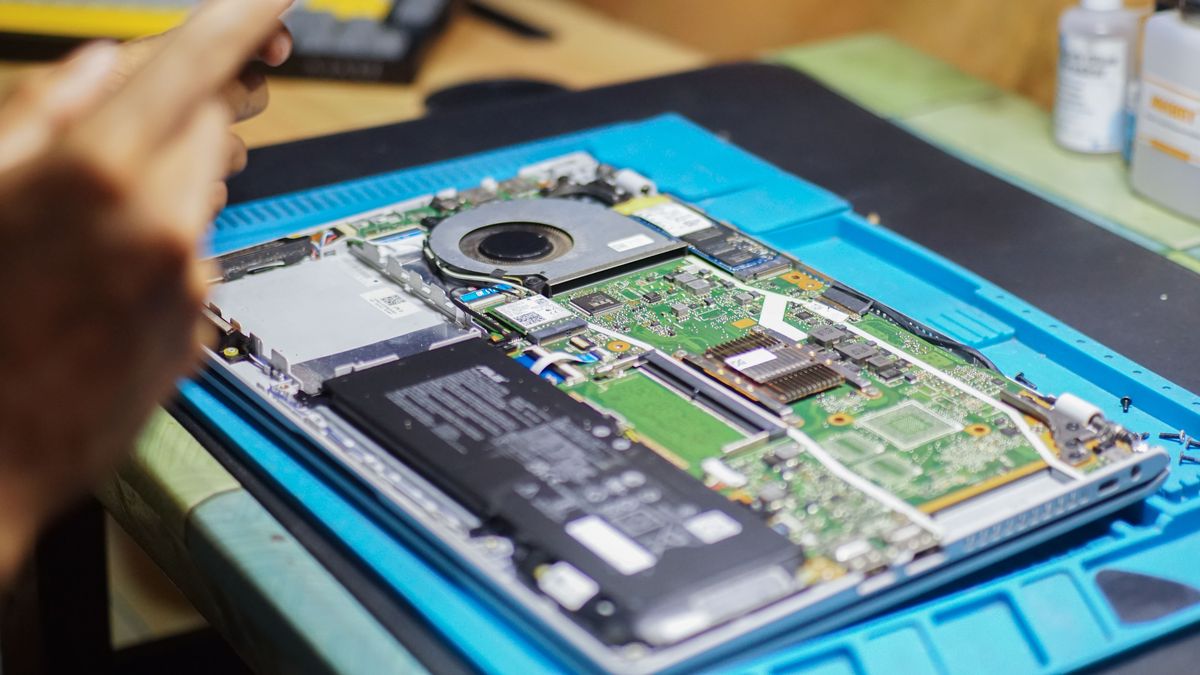
Picture this: it's 9 a.m. on a Monday, and a user drops a dead laptop on your desk. "It was working Friday," she says. They always say that. Your job is to figure out what's inside that machine, what can be replaced, and what can't — and the A+ exam will test you on exactly that judgment.
A laptop is a desktop computer folded in half, but the folding changes everything. Components shrink, solder themselves down, and share cramped thermal space. Let's walk through the parts that matter.
The Motherboard and CPU
In a desktop, the motherboard is a replaceable slab. In a laptop, the motherboard is the computer — nearly everything is soldered to it or plugged into proprietary slots. When a laptop motherboard dies, you generally replace the whole board (or the whole laptop). CompTIA wants you to know that laptop motherboards are not standardized the way desktop ATX boards are: you can't swap a Dell board into an HP chassis.
The CPU is almost always soldered (BGA package) in modern thin laptops, meaning no upgrades. Some thicker workstation-class laptops still use socketed mobile CPUs, but treat "soldered and non-upgradeable" as the default answer on the exam.
> EXAM TIP: If a question asks which laptop component is least likely to be field-replaceable, the answer is almost always the CPU or motherboard. RAM, storage, batteries, and wireless cards are the replaceable ones.
Memory: SODIMM
Laptops use SODIMM (Small Outline DIMM) — physically shorter than desktop DIMMs, with the notch in a different position so you can't jam a desktop stick into a laptop slot. Key facts:
| Memory type | Pins | Voltage | Note |
|---|---|---|---|
| DDR4 SODIMM | 260 | 1.2V | Most common in laptops today |
| DDR5 SODIMM | 262 | 1.1V | Newer laptops; notch prevents DDR4 insertion |
Most laptops have two SODIMM slots, often with one buried under the keyboard (check the service manual before you start prying). For dual-channel performance, install matched pairs — same size, speed, and ideally same manufacturer.
Scenario: A laptop boots but only shows 8 GB when 16 GB (2 × 8 GB) is installed. Before you blame a dead stick, reseat both modules — SODIMM slots are notorious for modules that look seated but aren't fully clicked in. Then test each stick individually. This "isolate by substitution" method is CompTIA's favorite troubleshooting pattern.
> EXAM TIP: DDR4 vs DDR5 SODIMMs have different pin counts (260 vs 262) and different notch positions. They are not interchangeable, and the question will try to trick you with "can I upgrade DDR4 to DDR5 by swapping sticks?" No — the motherboard's memory controller determines the generation.
Storage: SATA, M.2, and NVMe
Laptop storage has gone through three eras, and the exam covers all of them:
- 2.5" SATA drives (HDD or SSD) — the old standard, connected via SATA data + power. Still found in budget laptops.
- mSATA — a smaller card format, now largely obsolete. Know it exists; don't expect deep questions.
- M.2 — the current standard. A gumstick-sized card that comes in different lengths and, critically, different key types:
| M.2 key | Notch position | Interface | Typical use |
|---|---|---|---|
| B key | Pins 12–19 | SATA or PCIe ×2 | Older SATA M.2 SSDs |
| M key | Pins 59–66 | PCIe ×4 (NVMe) | Modern NVMe SSDs |
| B+M key | Both notches | SATA or PCIe ×2 | Universal fit, negotiates |
M.2 cards also come in lengths denoted by four digits: 2230, 2242, 2260, 2280, 22110 (width in mm + length in mm). The 2280 (22mm × 80mm) is the laptop standard. A 2242 card will physically fit in a 2280 slot (the mounting screw holes are spaced for multiple lengths), but a 22110 won't fit in a 2280-only slot.
NVMe (Non-Volatile Memory Express) is the protocol that lets SSDs talk directly over PCIe lanes instead of going through the old SATA/AHCI bottleneck. An NVMe drive in an M-key slot is dramatically faster than a SATA M.2 drive — but they look almost identical. The key notch is how you tell them apart.
> EXAM TIP: Classic exam trap — "A technician installs an M.2 NVMe SSD but the laptop doesn't detect it. The slot is B-keyed." The answer: the B-key slot doesn't support NVMe (needs M key). Always match the key type. Second trap: BIOS/UEFI set to the wrong storage mode, or the drive needing initialization in Disk Management — but check the physical key first.
The Battery and Power
Laptop batteries are either removable (older designs, with a release latch) or internal (modern thin laptops, screwed in and sometimes glued). Internal batteries require partial disassembly — and on the exam, the safety answer is always: disconnect AC power and remove/disable the battery before working inside.
Lithium-ion and lithium-polymer are the chemistries you'll see. They degrade with heat and with being held at 100% charge constantly — which is why many vendors now offer a "battery health" setting that caps charging at 80%.
Scenario: A laptop only runs on AC power and dies the instant you unplug it. The battery indicator says "plugged in, not charging." Steps: (1) check the battery health report in the OS, (2) try a known-good AC adapter (a failing adapter can power the laptop but not charge the battery), (3) reseat or replace the battery. Don't skip step 2 — it's the cheap fix.
Keyboards, Touchpads, and Pointing Devices
Laptop keyboards connect via a fragile ribbon cable (ZIF connector — Zero Insertion Force, with a locking latch). The #1 cause of "some keys don't work after I opened the laptop" is a ZIF cable that wasn't fully re-latched. Backlit keyboards are now common; the backlight is usually toggled with a Fn key combination.
Touchpads have largely replaced pointing sticks. On the exam, know that touchpad issues are usually driver-related (check Device Manager) or caused by an accidental disable — most laptops have an Fn key toggle for the touchpad, and users trigger it without realizing.
Wireless Cards and Other Internal Components
- Wi-Fi/Bluetooth combo card: usually an M.2 2230 A/E-keyed card with two tiny antenna wires (black = main, white = aux). When replacing, route the antenna wires exactly as they were — pinched wires kill signal strength.
- Webcam/microphone: integrated into the display bezel; privacy shutters are now standard.
- Speakers: small, tinny, and almost never worth replacing individually.
- Biometric readers: fingerprint sensors (in the power button or palm rest) and IR cameras for facial recognition. These tie into the OS-level authentication we'll cover in the security section.
- Smart card readers: common on business laptops for CAC/PIV authentication.
> EXAM TIP: CompTIA loves the antenna wire question. "After replacing a laptop's Wi-Fi card, the signal is very weak." Answer: the antenna wires weren't reconnected (or were swapped/damaged). It's never "reinstall Windows."
---
1.2 Display Technologies: What You're Actually Looking At
Every modern mobile display is some flavor of flat panel, but the flavors matter — for image quality, for troubleshooting, and for the exam.
How LCDs Work (and Why Backlights Matter)
An LCD (Liquid Crystal Display) doesn't produce its own light. The liquid crystals are like tiny shutters that block or pass light from a backlight behind them. No backlight = no picture, even though the LCD is working perfectly.
Older laptops used CCFL (cold cathode fluorescent lamp) backlights, which required an inverter — a small board that stepped up voltage to drive the fluorescent tube. Modern laptops use LED backlights, which run on low DC voltage and need no inverter.
This distinction is pure exam gold:
Scenario: A laptop powers on — you hear the fan, the drive spins — but the screen is black. You shine a flashlight at the screen at an angle and faintly see the Windows desktop. Diagnosis: the LCD panel and video are fine; the backlight has failed. On a CCFL machine, suspect the inverter (cheap, replaceable). On an LED machine, suspect the LED driver circuit or the panel itself. The flashlight test is the single most important laptop display troubleshooting step, and CompTIA will ask about it.
> EXAM TIP: "Flashlight test shows a dim image" = backlight/inverter failure, not a dead GPU or bad LCD. "No image at all even with flashlight" = panel, video cable, or GPU issue. Memorize this split.
TN vs IPS vs VA vs OLED
| Technology | How it works | Strengths | Weaknesses | Where you'll see it |
|---|---|---|---|---|
| TN (Twisted Nematic) | Crystals twist to pass light | Cheap, fast response | Poor viewing angles, washed-out colors | Budget laptops |
| IPS (In-Plane Switching) | Crystals rotate in plane | Great viewing angles, accurate color | Slower response, more expensive | Midrange/premium laptops, phones |
| VA (Vertical Alignment) | Crystals tilt vertically | Best contrast of the LCD types | Slower response, color shift at angles | Some premium laptops |
| OLED (Organic LED) | Each pixel makes its own light | Perfect blacks, infinite contrast, thin | Burn-in risk, expensive | Flagship phones, premium laptops |
Key conceptual point: OLED needs no backlight — each pixel is its own light source. That's why OLED blacks are truly black (the pixel just turns off) while LCD blacks are "very dark gray" (the backlight leaks through).
Touchscreens and Digitizers
A touchscreen adds a digitizer layer over the display — a transparent sensor grid that converts your touch into digital coordinates. Two types:
- Capacitive (what phones and modern laptops use): senses the electrical properties of your finger. Doesn't work with regular gloves; works with capacitive styluses.
- Resistive (older, industrial): pressure-based, works with anything but less precise.
Scenario: A touchscreen responds to touch but the taps land in the wrong place — you tap an icon and the one next to it activates. This is a calibration/digitizer issue, not a display issue. Recalibrate through the OS settings; if that fails, the digitizer layer is failing.
> EXAM TIP: Distinguish "display problems" (no image, wrong colors, flicker, dim) from "digitizer problems" (touch inaccurate or dead while the image is perfect). The exam will describe one and expect you to pick the right component.
---
1.3 Mobile Network Connectivity: Getting Connected Anywhere
This is the heart of the mobile domain — how phones and tablets talk to the world. CompTIA breaks it into cellular, Wi-Fi, Bluetooth, and NFC, and each has its own standards, ranges, and exam traps.
Cellular: Generations and SIM Cards
Cellular generations are really just "how fast and how":
| Generation | Technology | Typical real-world speed | Notes |
|---|---|---|---|
| 3G | UMTS/HSPA | 1–10 Mbps | Legacy; being sunset by carriers |
| 4G | LTE | 10–100 Mbps | The workhorse; "LTE" and "4G" used interchangeably |
| 5G | NR (New Radio) | 100 Mbps – 1+ Gbps | Sub-6 GHz (coverage) and mmWave (speed, very short range) |
Two legacy radio technologies still appear on the exam for historical context: GSM (used SIM cards, global standard) and CDMA (no SIM, carrier-locked — used by old Verizon/Sprint). Modern LTE/5G made this distinction irrelevant, but CompTIA keeps it around.
SIM cards identify your device to the carrier network:
| SIM type | Size | Note |
|---|---|---|
| Standard | 25 × 15 mm | Ancient history |
| Micro | 15 × 12 mm | Old phones |
| Nano | 12.3 × 8.8 mm | Current physical standard |
| eSIM | Embedded chip | No physical card; provisioned by software/QR code |
> EXAM TIP: "A user switches carriers but keeps the same phone. What's the smallest change needed?" If the phone is carrier-unlocked: swap the SIM (or activate a new eSIM profile). If it's carrier-locked: it must be unlocked first. The exam loves this distinction.
Wi-Fi: The Standards You'll Be Tested On
This table is worth memorizing cold — Wi-Fi questions are among the most common on the entire exam:
| Standard | Wi-Fi name | Max theoretical speed | Frequency | Key technology |
|---|---|---|---|---|
| 802.11b | — | 11 Mbps | 2.4 GHz | Original; long range, slow |
| 802.11a | — | 54 Mbps | 5 GHz | Short range, less interference |
| 802.11g | — | 54 Mbps | 2.4 GHz | The old coffee-shop standard |
| 802.11n | Wi-Fi 4 | 600 Mbps | 2.4 / 5 GHz | MIMO (multiple antennas) |
| 802.11ac | Wi-Fi 5 | ~3.5 Gbps | 5 GHz | MU-MIMO (multi-user) |
| 802.11ax | Wi-Fi 6/6E | ~9.6 Gbps | 2.4 / 5 / 6 GHz | OFDMA (efficient sharing) |
| 802.11be | Wi-Fi 7 | ~46 Gbps | 2.4 / 5 / 6 GHz | Multi-Link Operation |
The 2.4 GHz vs 5 GHz tradeoff is fundamental: 2.4 GHz travels farther and penetrates walls better but is slower and more crowded (only 3 non-overlapping channels in the US: 1, 6, 11). 5 GHz is faster with more channels but shorter range. The 6 GHz band (Wi-Fi 6E/7) adds even more clean spectrum with even shorter range.
Worked example: A user complains that Wi-Fi is slow in a crowded apartment building but fine at the office. Diagnosis: the 2.4 GHz band is saturated by neighboring networks. Fix: move the device to the 5 GHz SSID (many routers broadcast separate network names per band) or enable band steering. This is a classic "apply the concept" question.
> EXAM TIP: When a scenario mentions "many neighboring networks" or "interference," think 2.4 GHz congestion → switch to 5 GHz. When it mentions "signal doesn't reach the back room," think 5 GHz range limitation → switch to 2.4 GHz or add an access point. CompTIA tests this tradeoff constantly.
Bluetooth: Pairing, Classes, and Versions
Bluetooth is for short-range personal area networks — headsets, keyboards, mice, car systems. The pairing process is a favorite exam topic:
- Enable Bluetooth on both devices
- Put one device in discoverable/pairing mode
- Select it from the other device's list
- Confirm the PIN/passkey (often 0000 or 1234 for simple devices, or a displayed code for secure pairing)
- Devices bond and remember each other
Bluetooth classes (by range):
- Class 1: ~100 meters (industrial)
- Class 2: ~10 meters (phones, laptops — the common one)
- Class 3: ~1 meter (rare)
Versions that matter: 4.x introduced BLE (Bluetooth Low Energy) for fitness trackers and IoT. 5.x doubled speed and quadrupled range over 4.x. Versions are backward compatible — a Bluetooth 5.2 headset works with a Bluetooth 4.0 phone, just at 4.0 capabilities.
> EXAM TIP: "A Bluetooth headset pairs but the audio stutters when the user walks away with the phone in their pocket." This is a range/interference issue, not a pairing failure — the devices are already bonded. Check for obstructions or 2.4 GHz Wi-Fi interference (Bluetooth also lives at 2.4 GHz).
NFC: Tap to Pay, Tap to Pair
NFC (Near Field Communication) works at 13.56 MHz over a range of about 4 cm (1–2 inches) — you basically have to touch the devices together. Uses: contactless payment (Apple Pay, Google Pay), tap-to-pair with Bluetooth speakers, transit cards, and access badges.
The exam-relevant contrast: NFC = tiny range, no pairing needed, instant. Bluetooth = longer range, requires pairing. If a question describes "tap the phone to the terminal to pay," that's NFC — don't overthink it.
Hotspots, Tethering, and Airplane Mode
- Mobile hotspot: the phone shares its cellular data as a Wi-Fi network for other devices. Convenient, but drains battery fast and eats the data plan.
- Tethering: sharing the phone's connection via USB (fastest, charges the phone simultaneously) or Bluetooth (slower, lower power).
- Airplane mode: kills all radios — cellular, Wi-Fi, Bluetooth, NFC. It's also the universal first troubleshooting step for "my phone can't connect to anything": toggle airplane mode on, wait 10 seconds, toggle off. This forces all radios to re-initialize.
Scenario: A user's phone shows full cellular bars but no apps can reach the internet. Before anything else: check if airplane mode is on (the icon is easy to miss), then toggle it off and on. If that fails, check for data limit/cap settings or carrier outages. The exam rewards this "check the simple thing first" methodology.
---
1.4 Accessories: Docks, Dongles, and Port Multiplication
Modern ultrabooks have maybe two USB-C ports and nothing else. Accessories bridge the gap between portability and desk-bound productivity.
Docking Station vs Port Replicator
This distinction is directly tested — know it:
| Docking station | Port replicator | |
|---|---|---|
| Power | Provides power (charges the laptop) | Usually does NOT provide power |
| Connection | Proprietary dock connector or Thunderbolt/USB-C | USB |
| Expansion | May add PCIe slots, extra drive bays | Ports only — no internal expansion |
| Use case | Hot-desking: one cable for everything | Simple port multiplication |
The one-cable desk: A Thunderbolt/USB-C dock can carry display output, USB peripherals, Ethernet, and charging power over a single cable. When a user says "my external monitor works but the laptop isn't charging through the dock," the dock's power delivery has failed (or the laptop needs more wattage than the dock provides — common with 130W+ workstation laptops on 90W docks).
> EXAM TIP: "Docking station vs port replicator" — if the question mentions the laptop charging through the device, it's a docking station. If it's just about adding ports, it could be either, but only the dock provides power. This is one of CompTIA's favorite either/or questions.
Common Adapters and Cables
- USB-C to HDMI/DisplayPort: video out for projectors and monitors. Not all USB-C ports carry video — it requires DisplayPort Alt Mode or Thunderbolt.
- USB to Ethernet (dongle): for laptops with no wired NIC. Get a USB 3.0+ gigabit adapter; USB 2.0 caps at ~480 Mbps theoretical (~300 real).
- Thunderbolt: Intel's high-speed interface over USB-C. Thunderbolt 3/4 supports up to 40 Gbps, dual 4K displays, and daisy-chaining. A Thunderbolt port accepts USB-C devices, but a plain USB-C port doesn't accept Thunderbolt devices — the exam may test this asymmetry.
---
1.5 Mobile Operating Systems and App Support
Android vs iOS: What the Exam Cares About
CompTIA doesn't test you on using phones — it tests you on supporting them:
| Android | iOS | |
|---|---|---|
| Developer | Google (open source base) | Apple (closed) |
| App store | Google Play | App Store |
| Sideloading | Allowed (APK files, "unknown sources") | Not allowed (without jailbreaking) |
| File system access | Exposed to user | Hidden from user |
| Customization | Launchers, default apps changeable | Limited |
| Update model | Fragmented (carrier/manufacturer dependent) | Unified (Apple pushes to all) |
The practical consequences: Android malware more often comes from sideloaded APKs outside the Play Store. iOS malware is rare without jailbreaking. When troubleshooting "this app won't install," on Android check the "install unknown apps" permission; on iOS, the answer is almost always "it must come from the App Store."
App Permissions and Management
Both platforms now use runtime permissions — apps request access to camera, location, contacts, etc. when they need it, not just at install. As a technician, when a user says "the app can't see my photos," check the app's permissions in Settings before reinstalling anything.
MDM (Mobile Device Management) — covered more in security below — also handles app deployment: pushing required apps, blacklisting prohibited ones, and remotely removing corporate apps when an employee leaves (selective wipe vs full wipe).
---
1.6 Securing Mobile Devices: Locks, Encryption, and Remote Control
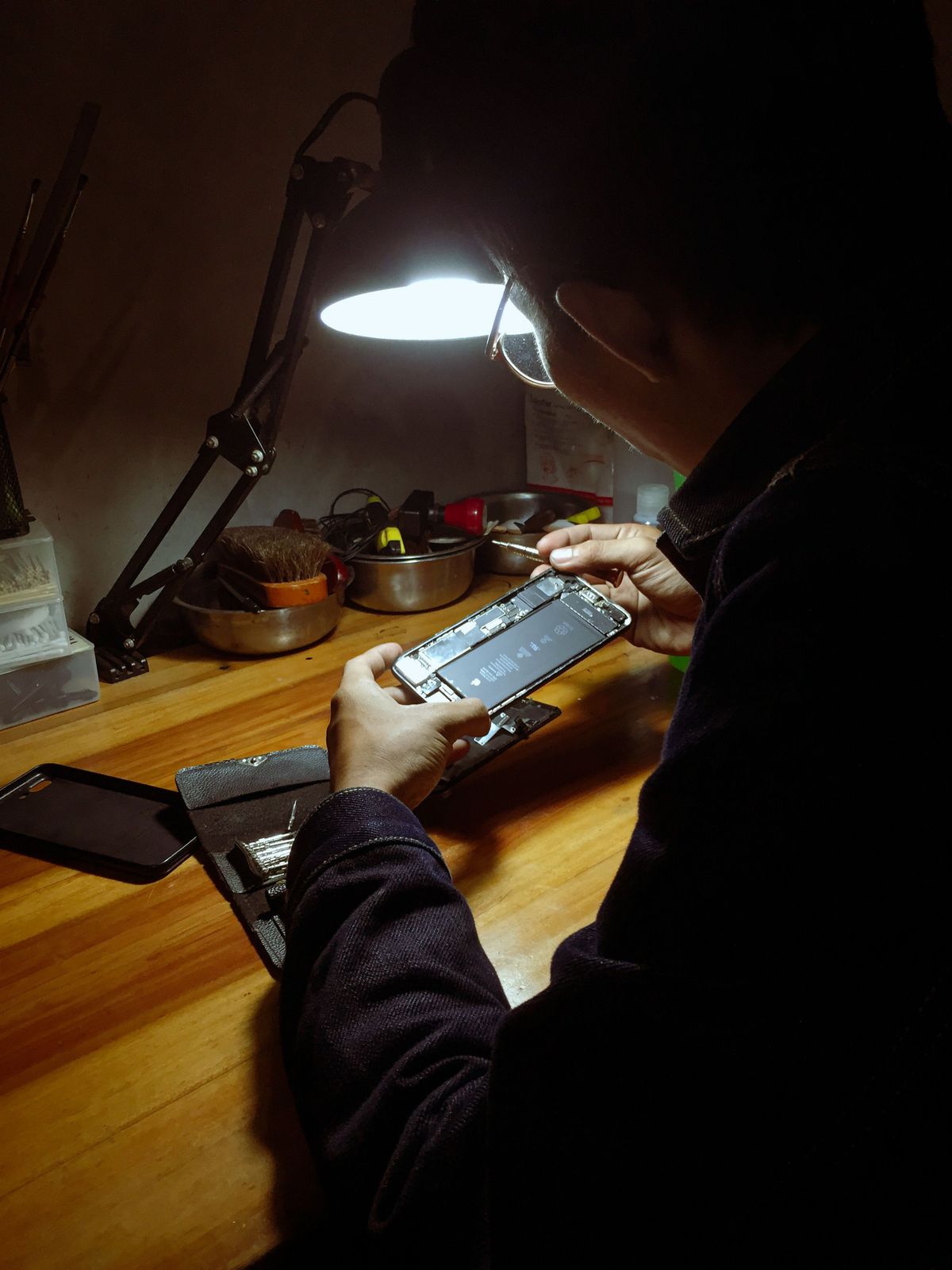
A phone holds someone's email, banking, photos, and corporate VPN credentials. It's the most loss-prone computer anyone owns. This section is heavily tested.
Screen Locks and Biometrics
In order of strength (weakest to strongest):
- Swipe / none — no security at all
- Pattern — better than nothing; smudge attacks are real (the oily trail reveals the pattern)
- PIN (4–6 digits) — decent; longer is better
- Password (alphanumeric) — strongest knowledge factor
- Biometrics — fingerprint, facial recognition, iris scan
Biometrics are convenience, not a replacement for a strong backup PIN/password — and legally, in some jurisdictions, you can be compelled to unlock with a fingerprint but not to reveal a password. The exam won't go that deep, but know that biometrics + a strong fallback is the recommended combination.
Failed-attempt lockout (e.g., wipe after 10 failed PINs) is a standard MDM-enforced policy.
> EXAM TIP: If a question asks for the most secure screen lock, the answer is a long alphanumeric password (or biometric + password). If it asks what's most practical for users, it's biometrics — CompTIA distinguishes "most secure" from "best balance."
Encryption, Remote Wipe, and Location
- Full-device encryption: scrambles all stored data; without the unlock credential, the flash chips are unreadable even if removed. Modern Android and iOS enable this by default once a screen lock is set. The exam term is full-disk encryption (FDE) even though it's flash, not disk.
- Remote wipe: erases the device over the network after loss/theft (via Find My iPhone, Google Find My Device, or MDM). Requires the device to be online.
- Remote lock: locks the device remotely without erasing — useful when you think it's just misplaced.
- Locator applications: GPS-based "find my device" with remote ring (even on silent), lock, and wipe.
- Remote backup: ensures the data exists in the cloud before you need the wipe.
Scenario (a classic): "An executive loses her phone at the airport. It contains corporate email. What's the FIRST step?" Answer: remote lock (immediate containment), then attempt locate, then remote wipe if unrecoverable. The order matters — wiping first destroys your ability to track it, and the exam tests this sequence.
MDM Policies and Containerization
Mobile Device Management is how companies control fleets of phones:
| MDM feature | What it does |
|---|---|
| Password enforcement | Requires PIN/password complexity, lockout timers |
| Remote wipe / selective wipe | Full erase, or erase only corporate data |
| Geolocation / geofencing | Track devices; enforce policies by location |
| Content management | Push apps, documents, Wi-Fi/VPN profiles |
| Containerization | Separates corporate apps/data from personal in an encrypted "container" |
| Jailbreak/root detection | Flags or blocks compromised devices |
Containerization deserves emphasis: it creates a cryptographically separated workspace on the phone. Corporate email and documents live in the container; when the employee leaves, IT wipes only the container (selective wipe), leaving personal photos intact. This is the exam's favorite answer for "how do you protect company data on employee-owned phones" (BYOD).
> EXAM TIP: Full wipe vs selective wipe — full wipe erases everything (theft response); selective wipe erases only corporate data (employee departure from BYOD). If the question mentions BYOD or "personal photos must be preserved," the answer is selective wipe, every time.
---
1.7 Synchronization: Keeping Data Consistent
Synchronization keeps the same data current across multiple devices — mail, contacts, calendars, photos, files.
| Method | How it works | When to use it |
|---|---|---|
| Cloud sync (iCloud, Google) | Automatic over internet | Default for consumers; requires account sign-in |
| USB sync | Cable to a computer | Large transfers, no network, or locked-down environments |
| Wi-Fi sync | Local network to a computer | Cable-free local backup |
| Bluetooth sync | Short-range | Small data (contacts); slow for media |
The common failure modes: wrong account signed in (photos syncing to a personal Google account instead of corporate), sync disabled for a specific data type (calendar not checked in settings), and storage full on the cloud account (the free 5 GB iCloud tier fills up fast).
Scenario: "A user's new phone isn't receiving the contacts from the old phone." Checklist: (1) verify both phones are signed into the same cloud account, (2) confirm contacts sync is enabled on the old phone, (3) force a manual sync, (4) check cloud storage isn't full. Work the list in order — don't factory-reset anything.
---
1.8 Troubleshooting Mobile Devices: The Method
CompTIA's troubleshooting methodology applies everywhere, but mobile devices have their own greatest-hits list of symptoms:
| Symptom | Likely causes (check in order) |
|---|---|
| No connectivity at all | Airplane mode → toggle radios → restart → carrier outage |
| Wi-Fi connected, no internet | Router/gateway issue → forget and rejoin network → DHCP |
| Bluetooth won't pair | Not in discoverable mode → too far → interference → unpair/re-pair |
| Touchscreen unresponsive | Restart → screen protector interference → digitizer failure |
| Rapid battery drain | Screen brightness → background apps → failing battery (check health) |
| Overheating | Blocked vents → intensive app → failing battery (swelling = replace immediately) |
| App crashes | Update app → clear cache → reinstall → OS update |
A note on swollen batteries: if a phone or laptop battery is bulging — screen lifting, case separating — stop using it immediately. Punctured lithium cells cause fires. Don't try to "fix" it; replace it following proper handling procedures. The exam includes safety, and this is the mobile safety question.
> EXAM TIP: The universal first step for any weird mobile behavior: restart the device. It's not a joke answer — on the exam, "restart" is correct more often than you'd expect, because mobile OSes accumulate glitches that a reboot clears. If restart is an option, pick it before hardware replacement.
---
End-of-Chapter Test
1. A laptop powers on — fans spin and drive activity is heard — but the screen is completely black. Shining a flashlight at the screen reveals a faint image of the desktop. What is the MOST likely cause?
A. Failed GPU B. Failed backlight/inverter C. Corrupted display driver D. Disconnected video cable
2. A technician needs to replace the storage in a thin ultrabook. The service manual specifies an M.2 2280 slot with an M key. Which drive should be purchased?
A. 2.5" SATA SSD B. M.2 B-keyed SATA SSD C. M.2 M-keyed NVMe SSD D. mSATA SSD
3. A user in a crowded apartment building complains that Wi-Fi is very slow on 2.4 GHz but has no issues at the office. What is the BEST first step?
A. Replace the wireless access point B. Switch the device to the 5 GHz network C. Increase the transmit power D. Change the Wi-Fi password
4. An executive loses a company phone containing corporate email. The phone is believed to be nearby but cannot be found. What should the technician do FIRST?
A. Perform a remote wipe immediately B. Remote lock the device, then attempt to locate it C. Call the carrier to suspend service D. File a police report
5. A company uses BYOD and needs to ensure corporate data can be removed when an employee leaves, without affecting personal photos. Which MDM feature accomplishes this?
A. Full device wipe B. Containerization with selective wipe C. Geofencing D. Jailbreak detection
6. After replacing a laptop's Wi-Fi card, the wireless signal is extremely weak even when close to the access point. What is the MOST likely cause?
A. The wrong driver was installed B. The antenna wires were not reconnected properly C. The card is incompatible with the router D. The BIOS needs updating
7. Which screen lock method provides the strongest security?
A. 4-digit PIN B. Fingerprint biometric alone C. Long alphanumeric password D. Pattern lock
8. A Bluetooth headset was previously paired with a phone but will no longer connect. The phone's Bluetooth is on. What should be tried FIRST?
A. Replace the headset battery B. Toggle Bluetooth off and on, then re-pair if needed C. Reset the phone to factory defaults D. Update the phone's operating system
9. A user wants to share their phone's cellular data connection with a laptop via the fastest method that also charges the phone. Which should they use?
A. Bluetooth tethering B. Wi-Fi hotspot C. USB tethering D. NFC
10. A laptop's touchscreen displays the image perfectly, but taps register in the wrong location. What is the MOST likely cause?
A. Failed LCD panel B. Digitizer calibration issue C. Corrupted video driver D. Failed backlight
---
Answer Key
1. B — The flashlight test revealing a faint image proves the LCD and GPU are working; only the backlight (or its inverter/driver) has failed.
2. C — The M key indicates NVMe/PCIe ×4 support. A B-keyed SATA drive won't fit properly, and 2.5"/mSATA are the wrong form factor entirely.
3. B — Crowded 2.4 GHz spectrum (only 3 non-overlapping channels) causes congestion. The 5 GHz band has more channels and less interference.
4. B — Remote lock first for immediate containment, then locate. Wiping first would destroy the ability to track the device.
5. B — Containerization separates corporate data; selective wipe removes only the container, preserving personal data on a BYOD device.
6. B — Weak signal after a Wi-Fi card replacement almost always means the tiny antenna wires (main/aux) weren't reconnected or were damaged.
7. C — A long alphanumeric password is the strongest knowledge factor. Biometrics are convenient but are not the "most secure" answer on the exam.
8. B — Toggle Bluetooth off/on to reset the radio stack, then unpair and re-pair if needed. Factory reset is excessive as a first step.
9. C — USB tethering is fastest and charges the phone simultaneously. Wi-Fi hotspot is convenient but drains battery; Bluetooth is slowest.
10. B — Perfect image with inaccurate touch = digitizer issue (calibration or hardware), not a display problem.
Answer key
Want the full CompTIA A+ Core 1 (220-1201) package?
This guide is free to read. Get the downloadable PDF guidebook plus the full 500-question A+ Core 1 practice exam with 3 months of online access.
Get CompTIA A+ Core 1 Full Access — $10