Chapter 1
Operating Systems
It's 8:40 on a Monday morning, and you're the new IT support tech at a mid-size accounting firm. Before you've even finished your coffee, three tickets land in your queue: a partner wants to know whether to buy Windows Home or Pro for the new laptops, a workstation that "was working fine on Friday" now boots to a black screen, and the office manager can't reach the shared drive where the tax files live. Three different problems — but they all live in the same territory: the operating system.
Operating Systems is the single biggest domain on the CompTIA A+ Core 2 exam at 28%. It covers Windows inside and out — editions, installations, disk management, the command line, networking — plus working knowledge of macOS and Linux. This chapter teaches it the way you'll actually use it: as the layer between the hardware and everything your users touch.
1.1 Windows Editions: Home, Pro, and Enterprise
Your first ticket: the partner is price-shopping laptops and asks, "Why would I pay extra for Pro? Home is cheaper." This is one of CompTIA's favorite real-world questions, and the answer comes down to three features.
Windows Home is the consumer edition. It does everything a home user needs — web browsing, Office apps, gaming — but it lacks the business features. Windows Pro adds three things that matter in an office: BitLocker (full-disk encryption), Group Policy support (centralized management), and the ability to join a domain (more on domains in section 1.6). Windows Enterprise is Pro plus volume licensing extras — AppLocker, DirectAccess, and long-term servicing channels — but you can only get it through a volume license agreement, not at a retail store.
CompTIA loves asking which edition supports a specific feature. Memorize this trio: BitLocker, Group Policy, domain join = Pro or higher. If a question says "a user with Windows Home needs to join the company domain," the answer is always some variation of "upgrade to Pro" — Home cannot join a domain, period.
Then there's the 32-bit versus 64-bit question. A 64-bit OS can address vastly more RAM (theoretically 16 exabytes; Windows 11 Pro supports up to 2 TB) and runs both 64-bit and 32-bit applications. A 32-bit OS is capped at 4 GB of RAM and can only run 32-bit apps. On modern hardware, there is no reason to install 32-bit Windows — but CompTIA still tests whether you know the limitation.
The classic trap: "A workstation has 16 GB of RAM installed, but Windows only reports 3.5 GB usable." That's a 32-bit OS. The fix is a clean install of 64-bit Windows — you cannot "upgrade" from 32-bit to 64-bit in place; it requires a clean installation.
| Feature | Home | Pro | Enterprise |
|---|---|---|---|
| Join a domain | No | Yes | Yes |
| BitLocker encryption | No | Yes | Yes |
| Group Policy | No | Yes | Yes |
| Remote Desktop (host) | No | Yes | Yes |
| Max RAM (Win 11) | 128 GB | 2 TB | 6 TB |
| Available at retail | Yes | Yes | No (volume license only) |
Scenario — the partner's laptops: You explain that since the firm uses a Windows domain and encrypts every laptop with BitLocker (client financial data — non-negotiable), Home won't cut it. Pro it is. The partner appreciates that you translated a technical distinction into a business reason. That's the skill the exam is really testing.
1.2 Installation Types: Clean, Upgrade, Repair, and Unattended
Ticket two is the black-screen workstation. Before you touch it, you need to know your installation options, because the wrong choice can wipe someone's data.
A clean install erases everything on the drive and installs Windows fresh. It's the go-to for a new drive, a malware-ravaged system, or switching architectures (32-bit to 64-bit). An upgrade installation keeps the user's files, settings, and applications while moving to a newer Windows version — less disruptive, but it carries old problems forward. A repair installation (also called an in-place upgrade) reinstalls Windows over itself to fix corrupted system files without removing the user's data or programs — this is often the right answer for "Windows is misbehaving but the data must be preserved."
Read these questions carefully — CompTIA phrases them as "which installation method preserves user data AND installed applications?" That's the repair installation / in-place upgrade. A clean install preserves nothing. An upgrade install preserves data but moves you to a new OS version. The distinction matters.
Then there's the method for deploying to many machines at once: unattended installation. Instead of clicking through setup screens on 20 PCs, you create an answer file (an XML file, traditionally unattend.xml) that supplies every setup answer automatically — product key, language, partition layout, user accounts. Pair it with network-based installation (booting from the network via PXE into Windows Deployment Services) or a cloned disk image, and one technician can roll out an entire office.
Scenario — the 20 new PCs: Your firm just hired 20 junior accountants. Instead of spending a week on installs, you build one reference machine, capture its image, create an answer file with the firm's standard settings, and deploy over the network. Total hands-on time: an afternoon. On the exam, when you see "administrator needs to install Windows on 50 identical computers with minimal interaction," think unattended installation with an answer file — or imaging, which CompTIA treats as a sibling concept.
| Method | Data preserved? | Apps preserved? | Best for |
|---|---|---|---|
| Clean install | No | No | New drive, severe malware, 32→64-bit |
| Upgrade install | Yes | Yes | Moving to a newer Windows version |
| Repair (in-place upgrade) | Yes | Yes | Fixing a broken Windows without data loss |
| Unattended + answer file | N/A | N/A | Mass deployment, zero-touch setup |
1.3 Disk Management: Partitions, File Systems, and Tools
Back to the black-screen workstation. You boot from a USB installer, open a command prompt, and start investigating the drive. Everything you do here rests on two concepts: partitioning and file systems.
A partition is a logical division of a physical disk — the OS treats each partition as a separate drive. The old MBR (Master Boot Record) scheme supports drives up to 2 TB and a maximum of 4 primary partitions. The modern GPT (GUID Partition Table) scheme supports enormous drives (up to 9.4 zettabytes theoretically) and up to 128 primary partitions on Windows. GPT is also required for UEFI secure boot.
The 2 TB limit is the #1 tested MBR fact. "A 4 TB drive only shows 2 TB in Windows" = the drive was initialized as MBR. The fix is to convert to GPT — but converting normally wipes the drive, so back up first. (Windows does have mbr2gpt.exe, a tool that converts without data loss, and CompTIA has started asking about it.)
The file system determines how data is organized on the partition:
| File system | Max file size | Max volume | Notes |
|---|---|---|---|
| NTFS | 16 TB | 256 TB | Windows default. Supports permissions, encryption (EFS), compression, journaling |
| FAT32 | 4 GB | 2 TB | Universal compatibility (USB drives, cameras). No permissions or journaling |
| exFAT | 16 exabytes | 128 petabytes | For large removable media (SD cards, external SSDs). No 4 GB file limit |
| ReFS | 35 petabytes | 35 petabytes | Resilient File System — server/data-integrity workloads, not typical desktops |
Two traps here. First: "a user can't copy a 5 GB video file to a USB drive with plenty of free space" — the drive is FAT32, and FAT32 caps single files at 4 GB. Reformat as exFAT or NTFS. Second: NTFS is the only common choice that supports file permissions — if a question mentions restricting access to a folder, the volume must be NTFS.
The tools. Disk Management (diskmgmt.msc) is the graphical tool: initialize disks, create/format partitions, assign drive letters, extend or shrink volumes. Diskpart is its command-line equivalent — more powerful, and scriptable. Here's a real diskpart session for setting up a new data drive:
DISKPART> list disk
  Disk 0    Online    476 GB
  Disk 1    Online   1863 GB

DISKPART> select disk 1
Disk 1 is now the selected disk.

DISKPART> clean
DiskPart succeeded in cleaning the disk.

DISKPART> create partition primary
DiskPart succeeded in creating the specified partition.

DISKPART> format fs=ntfs quick label=Data
  100 percent completed
DiskPart successfully formatted the volume.

DISKPART> assign letter=E
DiskPart successfully assigned the drive letter.Know that clean in diskpart wipes the partition table — everything on the disk becomes inaccessible. CompTIA has used "technician ran clean on the wrong disk" as a disaster scenario. Double-check with list disk and select disk before any destructive command.
1.4 Command-Line Tools: The Technician's Toolkit
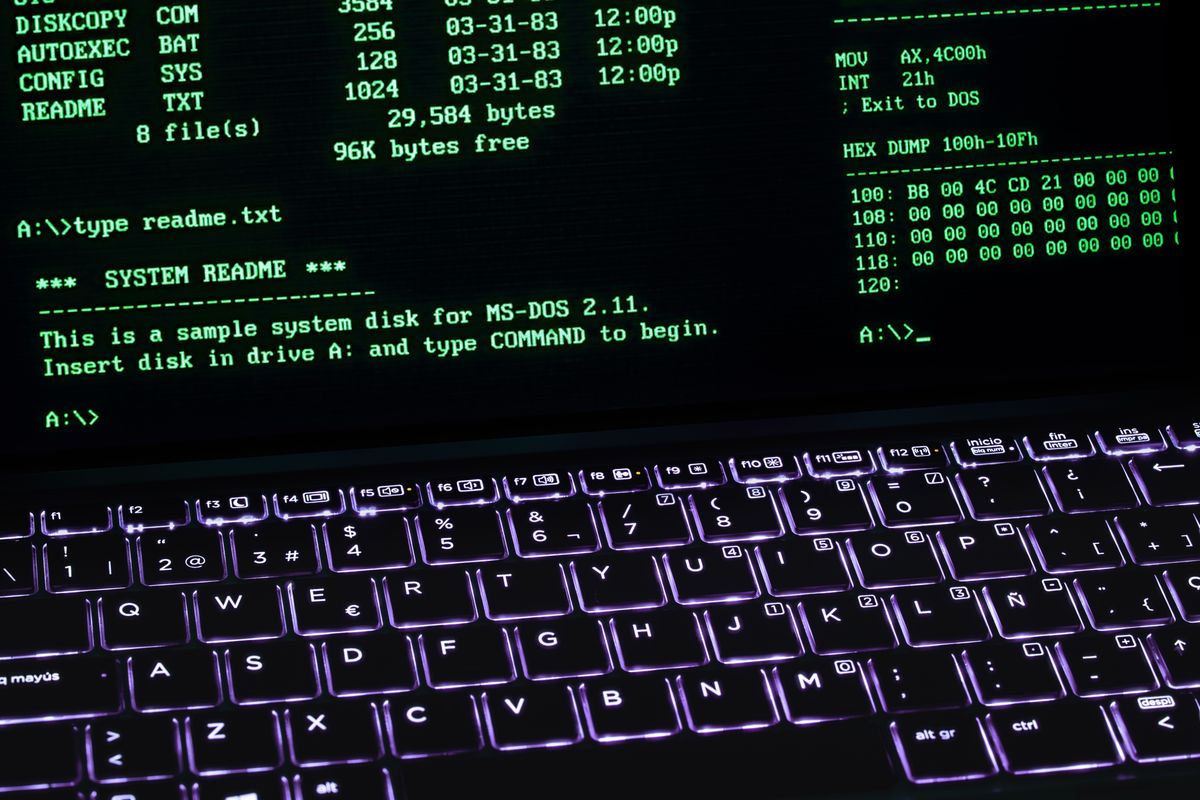
The command prompt is where good technicians separate from great ones. CompTIA expects you to know what each tool does, its common switches, and how to read its output. Let's walk through them the way you'd actually use them — in a troubleshooting session.
Scenario — "the internet is down": A user reports no network access. You open a command prompt and start with ipconfig:
C:\> ipconfig
Windows IP Configuration
Ethernet adapter Local Area Connection:
   IPv4 Address. . . . . . . . . . . : 169.254.23.14
   Subnet Mask . . . . . . . . . . . : 255.255.0.0
   Default Gateway . . . . . . . . . :
A 169.254.x.x address means APIPA — the machine couldn't reach a DHCP server. (You learned the "why" in your Core 1 networking studies; here it's a diagnostic clue.) Next you'd check whether it's the machine or the network: ping the loopback, then the gateway, then a public address:
C:\> ping 127.0.0.1        :: tests the local TCP/IP stack
C:\> ping 192.168.1.1      :: tests the local gateway
C:\> ping 8.8.8.8          :: tests internet reachability (bypasses DNS)
C:\> ping google.com :: tests DNS resolution tooThis ping progression — loopback → gateway → remote IP → hostname — is CompTIA's favorite network-troubleshooting sequence. If ping 8.8.8.8 works but ping google.com fails, the problem is DNS, not connectivity. Memorize that logic chain.
If the gateway pings but the internet is slow, tracert shows every hop and where the delay starts. netstat shows active connections — handy for spotting malware "phoning home":
C:\> netstat -ano | findstr ESTABLISHED(The -a shows all connections, -n uses numbers instead of names, -o shows the owning process ID.)
nslookup queries DNS directly:
C:\> nslookup certcrack.com
Server:  192.168.1.1
Address:  192.168.1.1
Non-authoritative answer:
Name:    certcrack.com
Address:  104.21.45.109
Scenario — "Windows is acting weird": Corrupted system files are the usual suspect. The repair sequence, in order:
sfc /scannow— System File Checker scans protected Windows files and replaces corrupted ones from a cached copy. Run this first.DISM /Online /Cleanup-Image /RestoreHealth— if SFC can't fix things (because its source cache is also damaged), DISM repairs the Windows component store that SFC draws from, pulling clean files from Windows Update.chkdsk /r— checks the disk itself for bad sectors and file-system errors (/rlocates bad sectors and recovers readable information; implies/f, which fixes errors). Schedule it at next reboot for the system drive.
The order matters and CompTIA tests it: SFC first, then DISM if SFC fails. Why? SFC repairs files from the component store; DISM repairs the component store itself. Running DISM first would be like restocking the pantry before checking what's spoiled in the fridge — backwards. Also know: chkdsk is about the disk, SFC/DISM are about Windows files.
File operations from the command line. format prepares a drive (format E: /fs:ntfs /q for a quick format). robocopy is the heavy-duty copy tool — it handles retries, mirroring, and multi-threaded copies that copy and xcopy can't:
C:\> robocopy C:\Users\Amina\Documents \\FILESERVER\Backups\Amina /MIR /MT:8 /LOG:backup.log(/MIR mirrors the directory tree, /MT:8 uses 8 threads, /LOG writes a log file.)
Group Policy from the command line. gpupdate /force reapplies group policies immediately instead of waiting for the automatic refresh cycle. gpresult /r shows which policies actually applied to the user and computer — essential when "the policy should be working but isn't."
Quick-fire facts CompTIA loves: ipconfig /release + /renew refreshes DHCP; ipconfig /flushdns clears the resolver cache; diskpart > list > select > clean wipes a disk; format needs a file system specified or it keeps the current one. And sfc requires an elevated (run as administrator) command prompt — a question may hinge on "the command failed with access denied" because the tech forgot to elevate.
| Tool | Purpose in one line |
|---|---|
ipconfig | View/release/renew IP configuration |
ping | Test reachability, step by step |
tracert | Trace the path and find slow hops |
netstat | Show active connections and listening ports |
nslookup | Query DNS directly |
chkdsk | Fix disk and file-system errors |
sfc /scannow | Repair protected Windows system files |
DISM /RestoreHealth | Repair the component store SFC uses |
diskpart | Partition and manage disks from CLI |
format | Format a volume with a file system |
robocopy | Robust multi-threaded file copying |
gpupdate /force | Immediately reapply Group Policy |
gpresult /r | Report which policies applied |
1.5 Control Panel vs Settings: Where Things Live Now
Windows has two configuration worlds, and CompTIA expects you to navigate both. The Settings app (the modern, touch-friendly interface) is where Microsoft puts new options. The Control Panel (the classic interface) still houses the deep administrative tools. Microsoft has been migrating items from Control Panel to Settings for years — but the migration is incomplete, which is exactly why the exam covers both.
The fastest way to open either: press Windows key + R, then type the command. control opens Control Panel. ms-settings: URIs open specific Settings pages. But the real power move is knowing the .msc and .cpl shortcuts for the admin tools:
| Command | Opens |
|---|---|
diskmgmt.msc | Disk Management |
devmgmt.msc | Device Manager |
services.msc | Services console |
eventvwr.msc | Event Viewer |
compmgmt.msc | Computer Management (bundles several tools) |
appwiz.cpl | Programs and Features (uninstall programs) |
ncpa.cpl | Network Connections |
Scenario — the shared-drive ticket: The office manager can't reach the tax-files share. You press Win+R, type ncpa.cpl to check the network adapter status, then open File Explorer and try the UNC path directly: \\FILESERVER\TaxFiles. It prompts for credentials — the manager's password expired last week and she didn't notice. Fifteen seconds, ticket closed. Knowing the direct paths beats clicking through six Settings screens.
When a question describes navigating to a tool, the fastest correct answer is usually the Run command or .msc shortcut. If CompTIA asks "which tool shows a history of system errors and warnings," that's Event Viewer (eventvwr.msc) — and they may phrase the symptom as "the technician needs to find what caused yesterday's crash."
1.5b System Utilities and User Management: The Daily Toolkit
Beyond the command line, Windows ships a set of graphical utilities you'll open constantly. Task Manager (Ctrl+Shift+Esc) is the first responder for a frozen system — the Processes tab shows CPU, memory, and disk usage per app so you can spot the runaway program, and the Startup tab lets you disable programs that slow boot times. System Configuration (msconfig) controls boot behavior: the Boot tab enables Safe Mode, the Services tab hides Microsoft services so you can isolate third-party conflicts, and the Startup tab (on modern Windows) redirects to Task Manager.
>
Safe Mode is the single most-tested troubleshooting environment on Core 2. It loads Windows with a minimal set of drivers and no startup programs. If a problem disappears in Safe Mode, the cause is a third-party driver, service, or startup program — not Windows itself. CompTIA phrases this as "the issue does not occur in Safe Mode; what does this indicate?" The answer is always some version of "a non-Microsoft driver or startup item is the culprit."
Device Manager (devmgmt.msc) manages hardware drivers. A yellow exclamation mark means a driver problem; a red X means the device is disabled. Right-clicking a device lets you update, roll back, or uninstall its driver — driver rollback is the fix when "everything worked until yesterday's driver update."
Windows Update deserves respect on the exam because it's tied to security. Patch Tuesday (the second Tuesday of each month) is Microsoft's regular update release. Feature updates add capabilities; quality updates fix bugs and security holes. A machine that's "slow and vulnerable" with updates paused since 2023 is a security finding, not just a nuisance.
User accounts come in two practical types. Administrators can install software, change system settings, and manage other accounts. Standard users can run applications and change their own settings but need an admin's credentials (via User Account Control, the famous "do you want to allow this?" prompt) for system-wide changes. The principle of least privilege says users should run as Standard and elevate only when needed — malware running in a Standard session can't easily infect the whole system.
Scenario — the intern's laptop: An intern's machine is riddled with browser toolbars and "system optimizer" popups. You check Task Manager's Startup tab — six sketchy programs launching at boot. You boot into Safe Mode (via msconfig), where the popups don't appear — confirming they're third-party junk, not Windows corruption. You uninstall the programs, run a malware scan, and convert the intern's account from Administrator to Standard so it can't happen again. Three tools, one principle, problem solved permanently.
UAC prompts appear when a Standard user (or an admin in Admin Approval Mode) attempts a system change. If a question says "the user cannot install software and receives a UAC prompt asking for an administrator password," the user is on a Standard account — and that's by design, not a malfunction.
1.6 Windows Networking: Workgroups, Domains, and Shared Resources
Your firm has 25 computers. Right now each one manages its own user accounts — that's a workgroup: a peer-to-peer arrangement with no central authority. It works fine for a handful of machines, but every password change has to be repeated on every PC, and there's no central place to enforce policy.
A domain fixes that with centralized management. One or more domain controllers (running Active Directory) hold every user account. Users log in with the same credentials on any domain-joined PC, passwords are managed in one place, and Group Policy pushes settings — mapped drives, security baselines, software installs — to every machine automatically.
The workgroup-vs-domain distinction shows up constantly. Key phrases: "centralized user management" or "single sign-on across computers" = domain. "Small office, no server, each PC independent" = workgroup. And remember from 1.1: joining a domain requires Windows Pro or higher — Home can't do it.
Accessing shared resources. On the network, shares are addressed with UNC paths: \\ServerName\ShareName. To make a share feel like a local drive, you map a network drive — assign it a letter (say, T: for the tax share) so it appears in File Explorer:
C:\> net use T: \\FILESERVER\TaxFiles /persistent:yes(/persistent:yes reconnects the drive at every logon — without it, the mapping vanishes on reboot, which is a classic "it worked yesterday" ticket.)
Permissions on shares have two layers: share permissions (who can connect to the share over the network) and NTFS permissions (who can do what to the files themselves). The effective permission is the most restrictive combination of the two.
This is a genuine exam trap: "A user has Full Control share permission but Read NTFS permission — what can they do?" Answer: Read only. The most restrictive wins. CompTIA phrases this several ways, so learn the principle, not just one example.
1.7 macOS: What a Windows Tech Needs to Know
Your firm just hired a graphic designer who uses a Mac. You don't need to be a macOS expert, but CompTIA expects baseline fluency — and the designer will judge you mercilessly if you treat her machine like a weird PC.
macOS is Apple's Unix-based operating system. Key concepts: Finder is the file manager (like File Explorer). Time Machine is the built-in backup tool — plug in an external drive, turn it on, and it keeps hourly snapshots you can browse like a time-traveling file browser. Disk Utility handles disk management (formatting, partitioning, First Aid repairs — the macOS equivalent of chkdsk). Spotlight (Cmd+Space) is the system-wide search that also does math, conversions, and launches apps. Software installs via the App Store or .dmg disk images (double-click to mount, drag the app to Applications), and system management lives in System Settings.
The file system is APFS (Apple File System) on modern Macs — it replaced HFS+. If a Mac drive needs to be read on Windows (or vice versa), exFAT is the common cross-platform format, since Windows can't natively read APFS and macOS can only read (not write) NTFS.
Scenario — the designer's backup: On her first day, you walk over with an external SSD, open System Settings → General → Time Machine, and set up hourly backups before she creates a single file. When her MacBook takes a coffee spill three months later, you restore her entire system to a replacement machine in an afternoon. She tells the partners you're a genius. All it took was knowing that Time Machine exists and turning it on before disaster strikes.
CompTIA's macOS questions are usually "which tool does X" format: backups = Time Machine, disk repair = Disk Utility / First Aid, file manager = Finder, system search = Spotlight. Also know that macOS updates come through System Settings → Software Update, and that virtualization (Parallels, VMware Fusion) or Boot Camp (Intel Macs) lets a Mac run Windows.
1.8 Linux: Distributions, Commands, and Permissions
The firm's new file server runs Ubuntu. Time to get comfortable with the penguin.
Distributions. Linux isn't one OS — it's a kernel plus a distribution's packaging. CompTIA-relevant distros: Ubuntu and Debian (beginner-friendly, huge communities), Fedora and Red Hat Enterprise Linux (commercial/enterprise), Arch (do-it-yourself), Kali (penetration testing). Software is installed through a package manager: apt on Debian/Ubuntu (sudo apt install nginx), dnf/yum on Fedora/RHEL, pacman on Arch.
Worked example — installing a web server on Ubuntu:
$ sudo apt update
Hit:1 http://archive.ubuntu.com/ubuntu jammy InRelease
Reading package lists... Done

$ sudo apt install -y nginx
Reading package lists... Done
Setting up nginx (1.18.0-6ubuntu14) ...
Created symlink /etc/systemd/system/multi-user.target.wants/nginx.service
apt update refreshes the list of available packages (it doesn't install anything — a common beginner confusion); apt install does the actual installation. The sudo prefix is required because installing system software needs administrator privileges — Linux's equivalent of Windows' UAC prompt, except you type your password instead of clicking Yes.
Essential commands. The exam focuses on navigation, file operations, and system info:
| Command | What it does |
|---|---|
pwd | Print working directory (where am I?) |
ls -la | List files with details including hidden ones |
cd | Change directory |
cp / mv / rm | Copy, move/rename, remove files |
mkdir | Make a directory |
chmod | Change file permissions |
chown | Change file owner |
sudo | Run a command as administrator (root) |
ps aux | Show running processes |
df -h | Show disk space usage (human-readable) |
grep | Search text within files or output |
cat | Display a file's contents |
Permissions — the big one. Every Linux file has three permission sets: owner (u), group (g), and others (o). Each set grants some combination of read (r=4), write (w=2), and execute (x=1). Permissions are shown as a 10-character string:
-rw-r--r-- 1 amina staff 2048 Oct 18 09:12 budget.xlsxReading left to right after the first character (file type): rw- = owner can read and write; r-- = group can only read; r-- = others can only read. The numeric form adds the values: rw- = 4+2 = 6, r-- = 4, so this file is 644.
Octal permissions are one of the most-tested Linux topics. Memorize the mapping: r=4, w=2, x=1. chmod 755 script.sh gives the owner full rights (7=4+2+1) and everyone else read+execute (5=4+1) — the standard for executable scripts. chmod 600 (owner read/write only) is the standard for private files like SSH keys. If a question says "a script won't execute," check whether the execute bit is set.
Worked example — locking down a private key:
$ ls -la ~/.ssh/id_rsa
-rw-r--r--  1 amina staff  1823 Oct 18 09:12 id_rsa
$ chmod 600 ~/.ssh/id_rsa
$ ls -la ~/.ssh/id_rsa
-rw-------  1 amina staff  1823 Oct 18 09:12 id_rsa
SSH refuses to use a private key that's readable by others — so 644 on id_rsa actually breaks SSH logins. Changing to 600 fixes it. This is the kind of cause-and-effect reasoning CompTIA rewards: not just "what does chmod do" but "what breaks when permissions are wrong."
Scenario — the full circle: It's 4:30 PM. The partner's Pro-vs-Home question got a business-savvy answer. The black-screen workstation? A corrupted boot configuration — you ran a repair installation from USB, SFC fixed the system files, and the user's data and apps survived. The office manager's shared drive? Expired password, UNC path, ticket closed in minutes. Three tickets, one chapter's worth of knowledge. That's the operating systems domain: it's not trivia about menus — it's the toolkit you reach for every single day.
---
End-of-Chapter Test
sfc /scannow completes but reports it could not repair some files. What should the technician run next?
D:\Projects to \\BACKUP\Projects every night, with logging and multi-threaded copying. Which command is the best fit?
\\SERVER\Docs but only Read NTFS permissions on the underlying folder. What level of access does the user effectively have over the network?
deploy.sh will not execute even though the user owns it. ls -l shows -rw-r--r--. What command fixes the problem, and why?
---
Answer Key
mbr2gpt.exe for a non-destructive conversion).
DISM /Online /Cleanup-Image /RestoreHealth. SFC repairs files from the component store; when SFC itself can't fix files, the component store is likely damaged too. DISM repairs the store, after which SFC can be re-run successfully. Both require an elevated command prompt.
robocopy D:\Projects \\BACKUP\Projects /MIR /MT:8 /LOG:nightly.log. Robocopy is built for exactly this: /MIR mirrors the directory tree, /MT:8 enables multi-threaded copying, and /LOG records the operation. Neither copy nor xcopy offers this combination.
chmod 755 deploy.sh (or chmod u+x deploy.sh) — the file lacks the execute bit. The permission string -rw-r--r-- (644) grants read/write but no execute permission to anyone. Adding execute (x=1) — 755 gives the owner rwx and others r-x — allows the script to run.
chkdsk.Answer key
Want the full CompTIA A+ Core 2 (220-1202) package?
This guide is free to read. Get the downloadable PDF guidebook plus the full 500-question A+ Core 2 practice exam with 3 months of online access.
Get CompTIA A+ Core 2 Full Access — $10